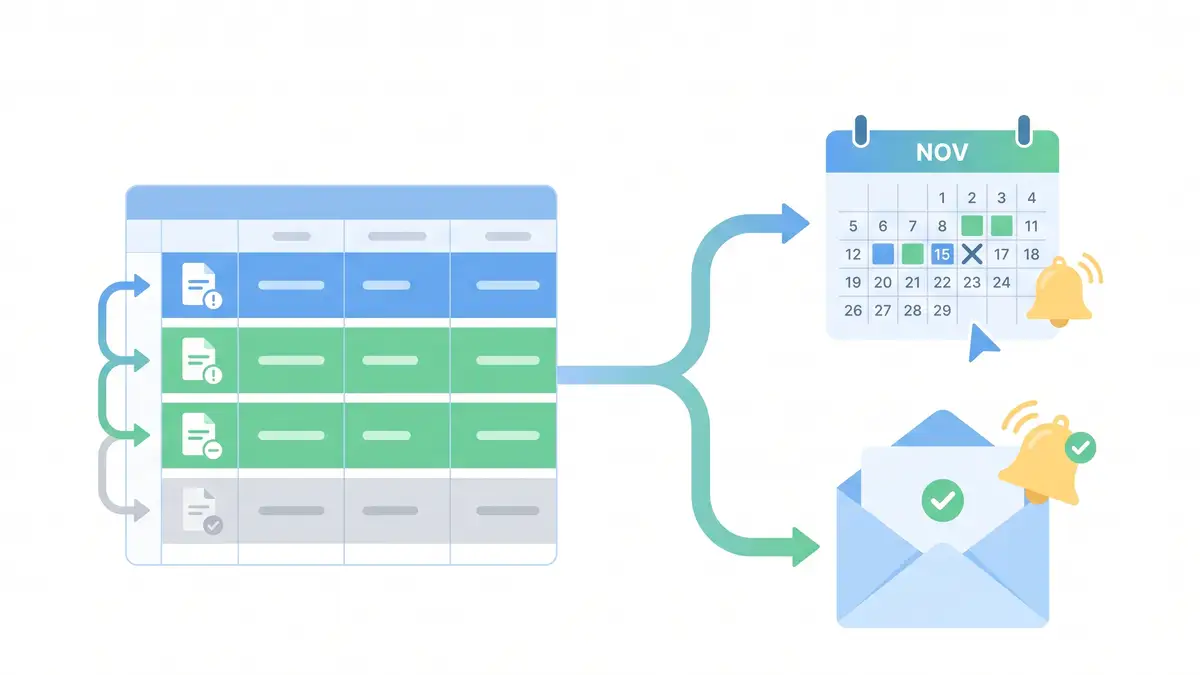
You can automate invoice reminders with Make, Google Sheets and Gmail in about an hour, so every client gets a friendly nudge before the due date and a firm follow-up after it, without you writing a single email by hand.
Laura runs a three-person web design studio. Every Monday she opens her invoice spreadsheet, scrolls through it, and writes the same awkward emails: "Just checking in on invoice 1042…" Some weeks she forgets. Some weeks she doesn't want to seem pushy, so she waits. Either way, the money arrives later than it should.
She is not alone. In the 2026 edition of its Small Business Late Payments Report, Intuit QuickBooks found that 59% of US small businesses have overdue invoices, with an average of $17,700 sitting unpaid. The same report links faster follow-up and more automated processes to fewer overdue invoices and less cash-flow stress.
This tutorial builds the follow-up system Laura needs. It runs once a day, reads your invoice sheet, sends the right email to the right client, and writes down what it did. It works on Make's free plan.
What you'll build: a daily Make scenario that sends a friendly reminder 3 days before an invoice is due and a firm reminder once it's overdue (at most once a week), then logs each email in your spreadsheet.
Time: about 60 minutes.
Cost: $0 on Make's Free plan for most small businesses (see the credit math below).
You need: a Google account and a free Make account.
Why invoice reminders are the perfect first automation
In our guide to which processes to automate first, the best candidates share three traits: they repeat on a schedule, they follow clear rules, and forgetting them costs money. Payment reminders tick all three boxes.
The rules are simple enough to write on a sticky note. If an invoice is unpaid and due in three days, send a polite heads-up. If it's past due, send a firmer message, but don't spam the client every day. If it's paid, do nothing. A person applying those rules by hand will eventually skip a week. A scenario won't.
There's also a softer benefit. Many owners delay chasing payments because it feels uncomfortable. When the system sends the reminder, it stops being personal. It's just how your business works. We looked at the cost of that hesitation in the real cost of not automating.
Before you start: the invoice sheet
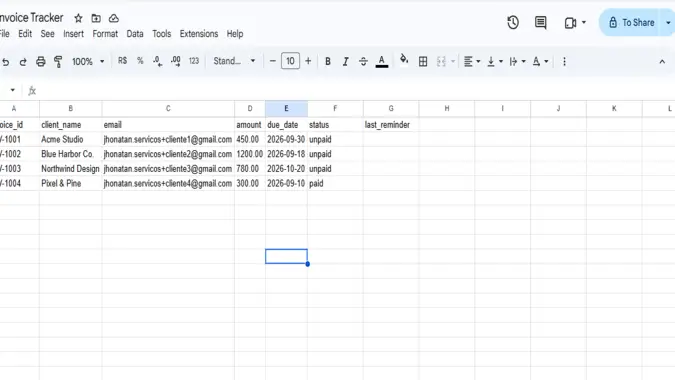
The scenario reads a Google Sheet with one row per invoice. Create a new spreadsheet called Invoice Tracker and add these seven columns in row 1:
| Column | Example | What it's for |
|---|---|---|
| invoice_id | INV-1001 | Shown in the email subject |
| client_name | Acme Studio | Personalizes the greeting |
| [email protected] | Where the reminder goes | |
| amount | 450.00 | Shown in the email body |
| due_date | 2026-09-30 | Decides which reminder is sent |
| status | unpaid / paid | Only unpaid invoices get emails |
| last_reminder | 2026-09-27 | Filled in by Make, prevents repeat emails |
Three settings will save you from the most common errors:
- Name the tab without accents or special characters. "Sheet1" works. A tab named with an accented letter, such as the default "Página1" in Portuguese-language Google accounts, can make Make fail with an
INVALID_ARGUMENT - Unable to parse rangeerror. - Write dates as YYYY-MM-DD and format the column as plain text. Select the due_date column, then go to Format > Number > Plain text. This stops Google Sheets from turning your dates into another format that the filters won't recognize.
- Add a few test rows first. Use your own address with a "+" alias (for example,
[email protected]) so every test email lands in your inbox. Create one invoice due in 3 days, one already overdue, one due next month and one marked "paid".
Step by step: building the scenario
If you haven't used Make before, create a free account (affiliate link, explained at the end). New to the tool? Our lead capture tutorial walks through the interface in more detail.
Step 1: Search for unpaid invoices
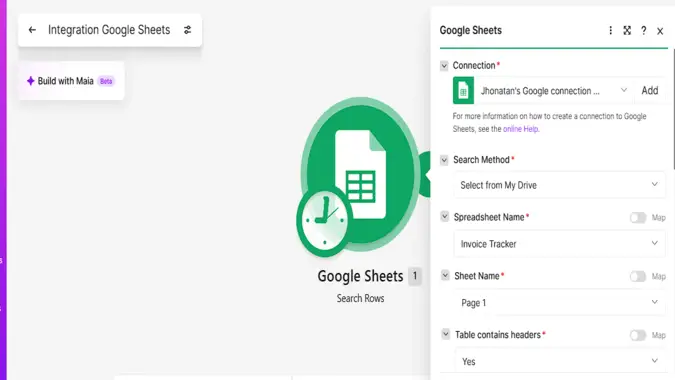
Click Create a new scenario and name it Invoice Reminders. Click the big plus sign, search for Google Sheets and choose Search Rows. Connect your Google account, then fill in:
- Spreadsheet: Invoice Tracker
- Sheet name: Sheet1
- Table contains headers: Yes
- Filter: status, Equal to,
unpaid
This module returns one "bundle" for each unpaid invoice. Paid invoices never enter the scenario, so they can't trigger an email by mistake.
Step 2: Add a Router
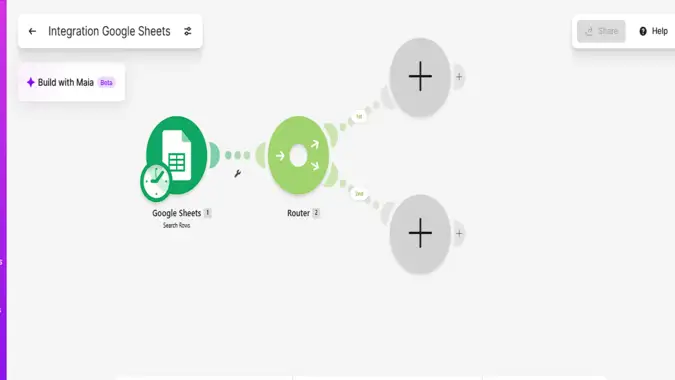
Hover over the Google Sheets module and click the small half-circle on its right side. Search for Router (under Flow Control) and add it. The Router splits the flow into two paths: one for invoices that are about to be due, and one for invoices that are already late. Make doesn't charge credits for the Router itself.
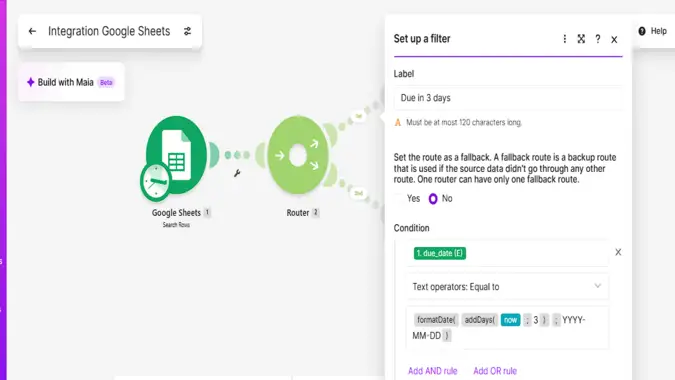
Step 3: Filter the "due in 3 days" route
Click the line between the Router and its first path, then choose Set up a filter. Configure it like this:
- Label: Due in 3 days
- Condition: due_date (from the Google Sheets module)
- Operator: Text operators: Equal to
- Value:
{{formatDate(addDays(now; 3); "YYYY-MM-DD")}}
The formula takes today's date, adds three days and formats it the same way as your sheet. Only invoices due exactly three days from now pass. If pasting the formula leaves it as plain text, build it by clicking: open the date functions tab, choose formatDate, then addDays inside it, then now.
Step 4: Filter the "overdue" route
Set up a filter on the second path. This one needs two groups of conditions, joined with OR, so a late invoice gets a reminder right away and then once a week, not every day:
- Label: Overdue
- Group 1: due_date, Date operators: Earlier than,
nowAND last_reminder, Basic operators: Does not exist - Click Add OR rule
- Group 2: due_date, Date operators: Earlier than,
nowAND last_reminder, Date operators: Earlier than,{{addDays(now; -7)}}
In plain English: send the email if the invoice is late and has never been reminded, or if it's late and the last reminder was more than seven days ago. Change the 7 to 3 or 14 to match your style.
Step 5: Send the emails
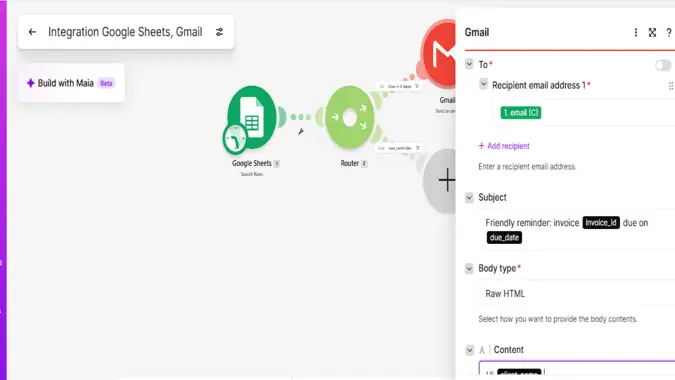
At the end of each route, add a Gmail > Send an Email module. In the To field, map the email column. Then write the subject and body, clicking each column name in the mapping panel where you see double curly braces below.
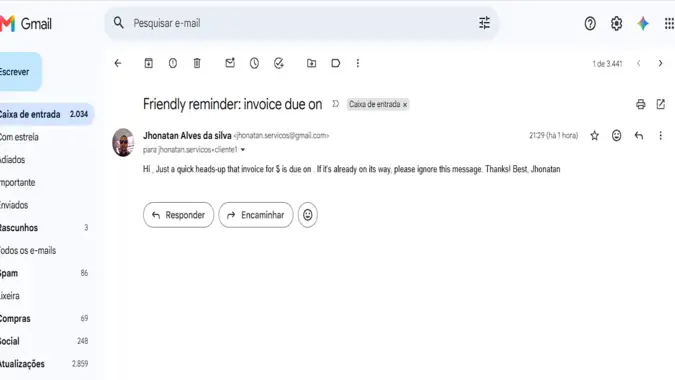
Friendly reminder (route 1):
Subject: Friendly reminder: invoice {{invoice_id}} due on {{due_date}}

Hi {{client_name}},

Just a quick heads-up that invoice {{invoice_id}} for ${{amount}}
is due on {{due_date}}.

If it's already on its way, please ignore this message. Thanks!

Best,
Laura
Overdue reminder (route 2):
Subject: Invoice {{invoice_id}} is past due

Hi {{client_name}},

Our records show that invoice {{invoice_id}} for ${{amount}}
was due on {{due_date}} and is still open.

Could you let me know when we can expect payment? If you've
already paid, just reply and I'll update our records.

Thank you,
Laura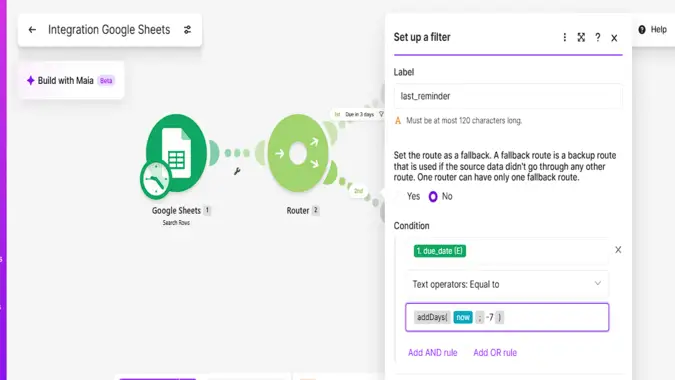
Tip: if connecting Gmail gives you a permission error, use the Email > Send an Email module instead and connect it with your domain's SMTP settings. The rest of the scenario stays the same, and emails sent from your own domain often look more professional to clients.
Step 6: Log each reminder in the sheet
After each Gmail module, add Google Sheets > Update a Row. Choose the same spreadsheet and tab. In Row number, map the row number from the Search Rows module. In last_reminder, enter:
{{formatDate(now; "YYYY-MM-DD")}}Leave every other field empty so Make doesn't overwrite it. To save time, configure the first Update a Row module, right-click it, choose Clone and connect the copy to the second route.
This log is what makes the overdue filter work. It's also useful on its own: when a client says "I never got a reminder", you can see the exact date it went out.
Step 7: Test, schedule and switch it on
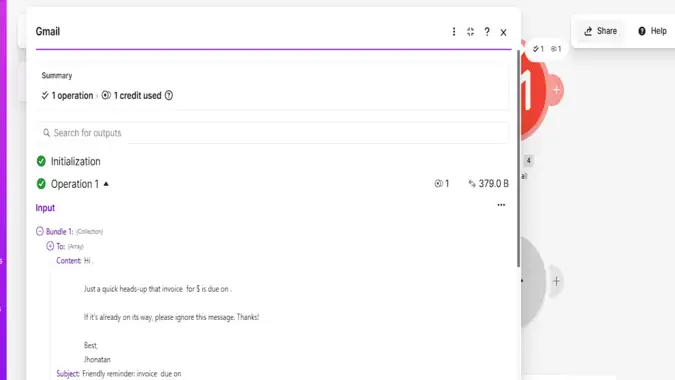
Click Run once. With the four test rows from earlier, you should see one bundle go through each route, two emails arrive in your inbox, and the last_reminder column filled in for those two rows. The invoice due next month and the paid invoice should be untouched.
Now click the clock icon on the first module and set the schedule to Every day at a sensible hour, such as 9:00 in the morning. Check that the time zone in your Make profile matches your business, because "today" in the filters depends on it. Finally, switch the scenario ON.
Writing reminder emails that get paid
The templates above follow a few rules that are worth keeping when you adapt them:
- Put the invoice number and amount in the email. The client shouldn't have to search for the original invoice to know what you're talking about.
- Give an easy way out. "If you've already paid, just reply" keeps the tone friendly and helps you catch payments you haven't recorded yet.
- Ask one clear question. "When can we expect payment?" gets more replies than a vague "please look into this".
- Add your payment link. If you use Stripe, PayPal or a bank transfer, include the details or a link in both emails. Every extra step for the client is a reason to postpone.
- Keep it plain. Short text emails look personal and are less likely to land in spam than heavily designed templates.
How many credits this uses
Make bills in credits. According to Make's pricing page, each module action, such as searching a sheet or sending an email, counts as one credit, and the Router module doesn't count at all. That gives a simple formula for this scenario:
- 1 credit per day for the Search Rows module, or about 30 a month.
- 2 credits per reminder sent: one for the email, one for the sheet update.
Invoices that don't match either filter cost nothing beyond the daily search. Here is what that looks like at different volumes:
| Reminders sent per month | Daily search | Emails + updates | Total per month | Fits the Free plan (1,000)? |
|---|---|---|---|---|
| 10 | 30 | 20 | 50 | Yes |
| 50 | 30 | 100 | 130 | Yes |
| 200 | 30 | 400 | 430 | Yes |
| 450 | 30 | 900 | 930 | Just barely |
In our own test run with four sample invoices, the scenario used 5 credits, which you can check in the scenario's History tab.
Don't leave the default schedule. New scenarios often start at "every 15 minutes". That means 96 searches a day and about 2,880 credits a month before a single email is sent, almost three times the Free plan's allowance. Once a day is enough for payment reminders.
Common mistakes (and how to fix them)
- "Unable to parse range" error: the tab name has an accent, a space or a special character. Rename it to something like Sheet1, then reselect the spreadsheet and tab in the module so Make reloads them.
- No invoice passes the filters: the due_date column is probably formatted as a date instead of plain text, so Make receives something like 9/30/2026. Format the column as plain text and retype the dates as YYYY-MM-DD.
- Reminders arrive a day early or late: your Make time zone doesn't match your business. Fix it in your profile settings.
- The same client gets emails every day: the Update a Row module is missing, or it's writing to the wrong row. Check that Row number is mapped from Search Rows.
- Emails go to spam: send from an address on your own domain with SPF, DKIM and DMARC configured, and keep the messages short and in plain text.
- Someone pays and still gets a reminder: the scenario only knows what's in the sheet. Make changing the status to "paid" part of your routine when money arrives, or automate that step later.
When to move beyond Google Sheets
A spreadsheet is the right place to start: it's free, everyone understands it, and you can see exactly what the automation is doing. It stops being the right tool when invoices live somewhere else.
If you already send invoices from QuickBooks, Xero, FreshBooks or Stripe, check their built-in reminder features first. Many offer automatic reminders out of the box. Make becomes useful again when you want something those tools don't do, such as sending a Slack alert to your team when an invoice is 30 days late, or creating a follow-up task in your project manager.
On the Make side, the Free plan allows two active scenarios with runs at least 15 minutes apart. You'll need a paid plan when you want more scenarios running at the same time. On Make's pricing page, checked in September 2026, the Core plan is listed at $12 a month for 10,000 credits, and annual billing is advertised as saving 15% or more. If you're still choosing a platform, our Zapier vs Make vs n8n comparison breaks down the trade-offs.
Frequently asked questions
Can I automate invoice reminders for free?
Yes. Make's Free plan includes 1,000 credits a month and two active scenarios. A daily reminder scenario uses about 30 credits a month for the search, plus 2 credits for each reminder sent, so most small businesses stay well within the limit.
Will clients get a reminder every day once an invoice is overdue?
No. The overdue filter checks the last_reminder column and only sends a new email if the previous one went out more than seven days ago. You can change that interval in the filter.
Do I need to know how to code?
No. Everything in this tutorial is done by clicking in Make's visual editor. The only "code" is two short date formulas, which you can paste or build by clicking.
Can I use Outlook instead of Gmail?
Yes. Replace the Gmail modules with Microsoft 365 Email or with the generic Email module using your SMTP settings. The filters and the sheet updates stay the same.
What happens when a client pays?
Change the invoice status to "paid" in the sheet. From the next run on, the Search Rows filter ignores that row, so no more reminders go out.
Your next step
Set up the sheet, build the scenario with your own email as the test client, and let it run for a week before adding real invoices. Once it's working, you've automated one of the most important processes in any small business: getting paid. If you're building your automation stack from scratch, start with our introduction to business process automation.
Disclosure: the Make link in this article is an affiliate link. If you sign up for a paid plan through it, Biz Flow Craft may earn a commission at no extra cost to you. It doesn't change how we test or recommend tools.
Sources
- Intuit QuickBooks, 2026 Small Business Late Payments Report, survey of 1,305 US business owners, December 2025.
- Make, Pricing & Subscription Packages, plans, credit rules and Free plan limits, checked September 2026.
- Make Help Center, Credits and operations, checked September 2026.
Comments (0)
Leave a Reply