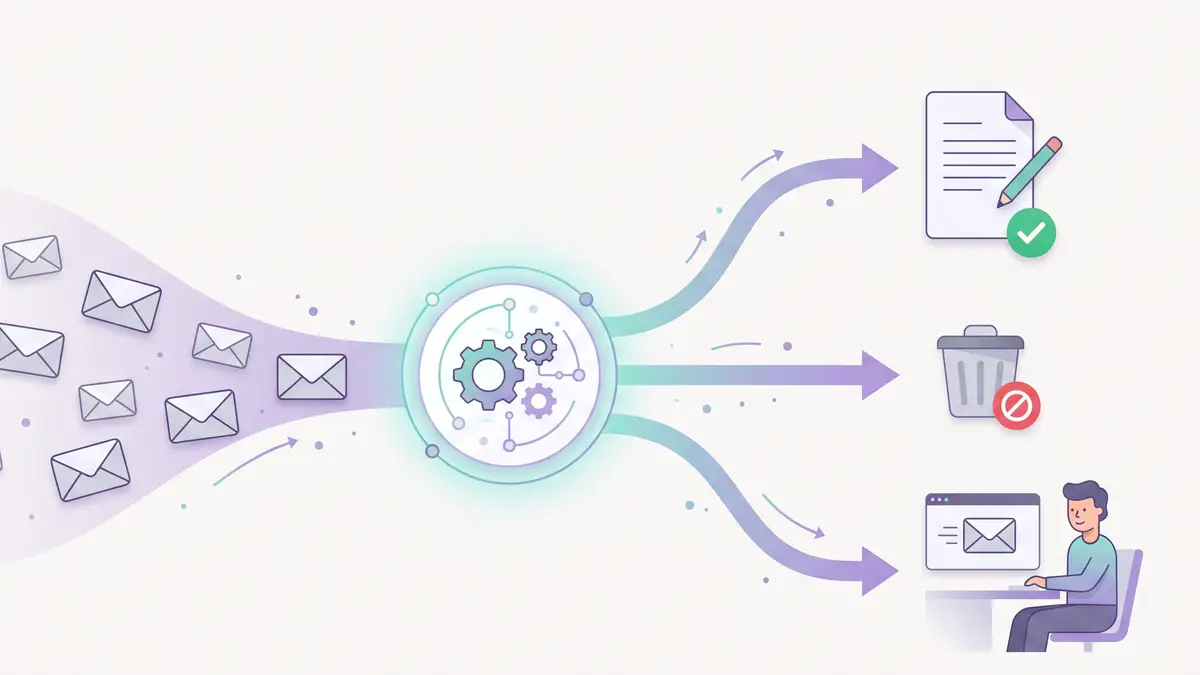
You can automate customer support emails with Make and an AI model without letting the AI talk to your customers on its own. In the setup below, every email that lands in a Gmail label gets read, classified and logged. If your approved FAQ answers the question, you get a draft reply in Gmail, ready to check and send. Everything else (complaints, refunds, urgent problems and questions the FAQ doesn't cover) goes to a person with a one-line summary. Spam is logged and ignored.
I built and tested it for a fictional small business, Brightside Cleaning Co., with seven real test emails. Two became drafts, four went to a human, and one was marked as spam. That is exactly the split I expected, but it took six fixes to get there. They are all in the "What I learned" section, so you can skip them.
What you'll build
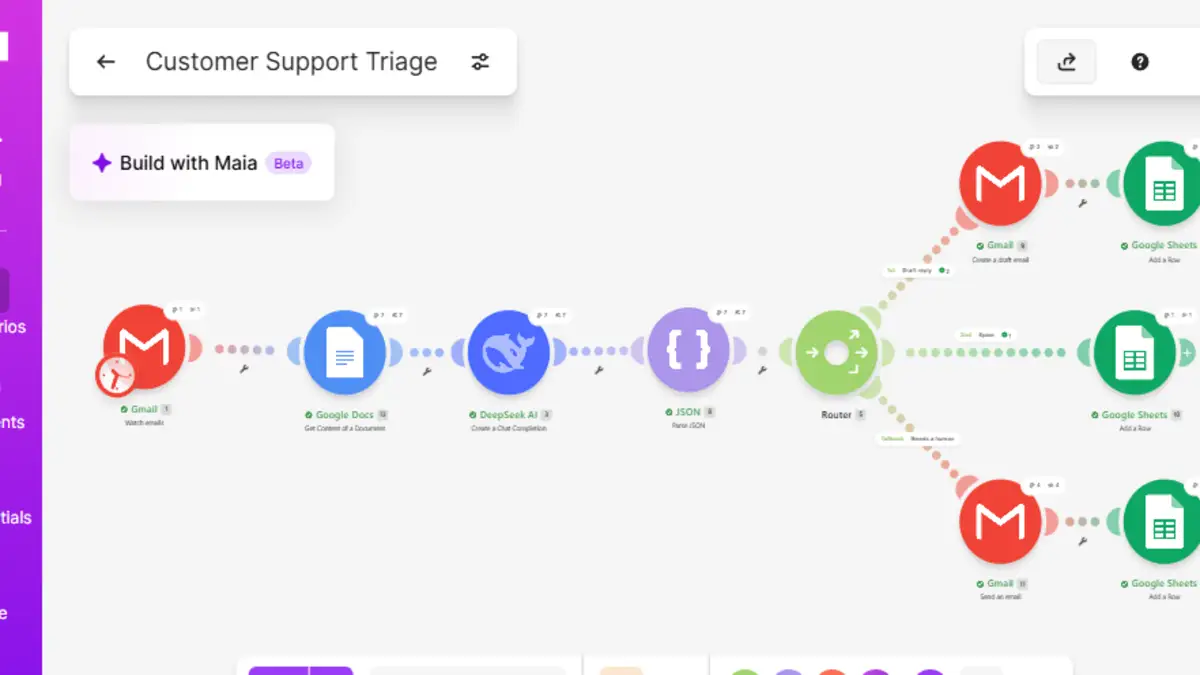
| # | Module | What it does |
|---|---|---|
| 1 | Gmail: Watch emails | Picks up new emails with the "Support" label |
| 2 | Google Docs: Get content of a document | Reads your approved FAQ |
| 3 | DeepSeek AI: Create a chat completion | Classifies the email, picks the FAQ entry that answers it (or none) and writes a draft |
| 4 | JSON: Parse JSON | Splits the AI answer into fields you can map |
| 5 | Router | Sends each email down one of three routes: draft reply, spam or needs a human |
| 6 | Gmail: Create a draft / Send an email | Creates the draft for FAQ questions, or alerts you about everything else |
| 7 | Google Sheets: Add a row | Logs every email in a Tickets sheet |
Why drafts, not automatic replies
Most support tools sell the fully automatic answer. For a small business, that is the risky part. One invented price or a promise you can't keep costs more than the time you save.
So this scenario follows three rules. The AI only answers from an FAQ you wrote and approved. Some categories always go to a person, no matter what the AI thinks: complaints, billing, refunds, account changes and anything urgent. And nothing reaches the customer until you press Send.
Once the drafts are consistently right for a few weeks, you can decide whether some FAQ answers are safe to send automatically. Start with drafts.
Before you start
- A Make account. The free plan is enough to build and test this. Create one here (affiliate link). If you are still choosing a platform, see Zapier vs Make vs n8n.
- An AI API key. I used DeepSeek because it is cheap and Make has a native module for it. The same setup works with OpenAI or Anthropic modules; only step 3 changes.
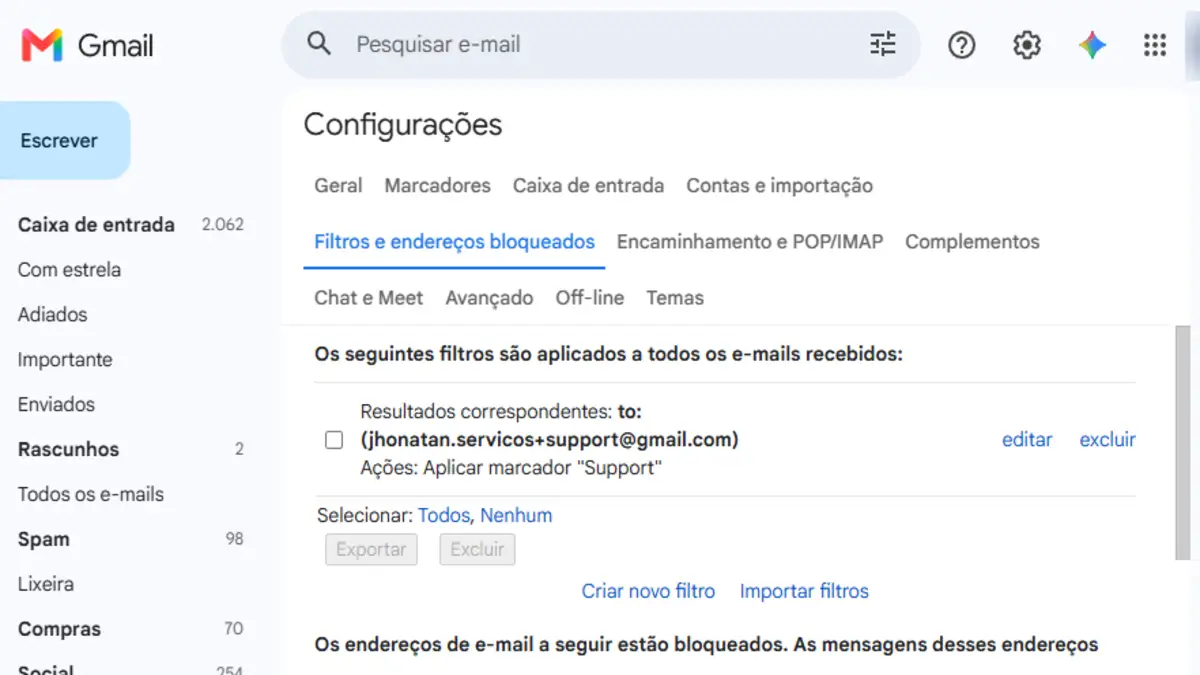
- A Gmail label and filter. Create a label called
Supportand a filter that applies it to emails sent to your support address. For testing, an alias likeyourname+support@gmail.comworks well. - A Google Doc with your FAQ. One entry per line, in the format
ID | question | answer. - A Google Sheet called "Support Desk" with a tab named
Ticketsand these headers in row 1:received_at,message_id,from_email,subject,category,faq_id,route,summary.
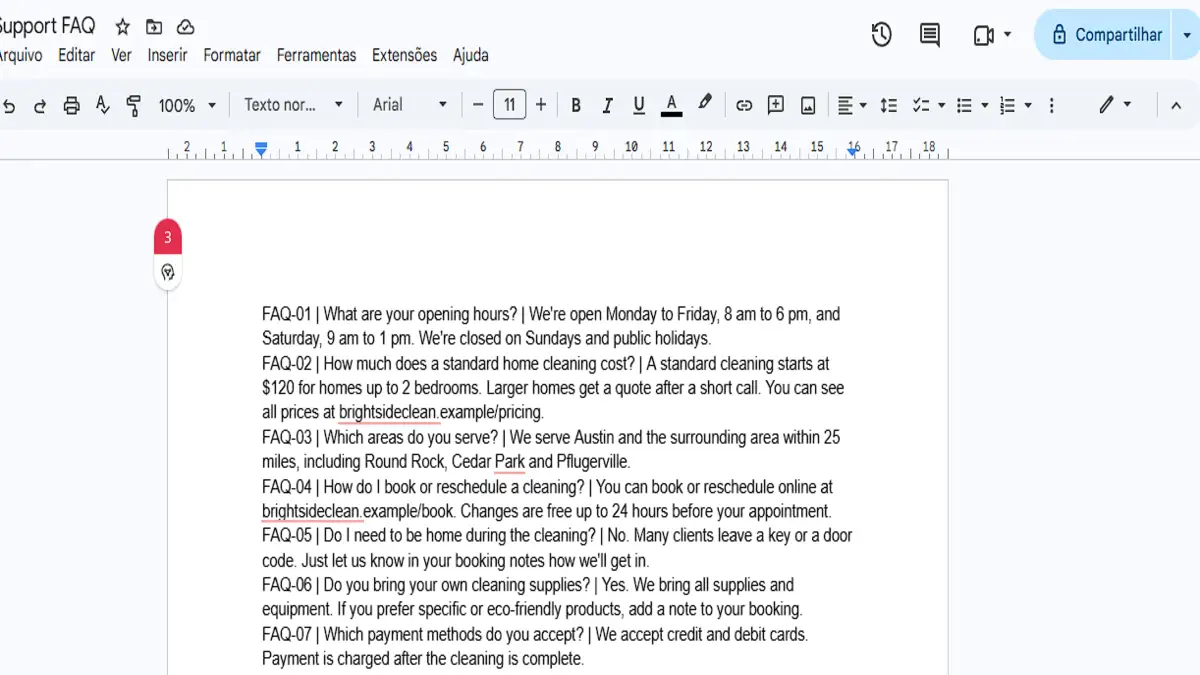
Here is the FAQ I used, if you want to copy it for a test:
FAQ-01 | What are your opening hours? | We're open Monday to Friday, 8 am to 6 pm, and Saturday, 9 am to 1 pm. We're closed on Sundays and public holidays.
FAQ-02 | How much does a standard home cleaning cost? | A standard cleaning starts at $120 for homes up to 2 bedrooms. Larger homes get a quote after a short call. You can see all prices at brightsideclean.example/pricing.
FAQ-03 | Which areas do you serve? | We serve Austin and the surrounding area within 25 miles, including Round Rock, Cedar Park and Pflugerville.
FAQ-04 | How do I book or reschedule a cleaning? | You can book or reschedule online at brightsideclean.example/book. Changes are free up to 24 hours before your appointment.
FAQ-05 | Do I need to be home during the cleaning? | No. Many clients leave a key or a door code. Just let us know in your booking notes how we'll get in.
FAQ-06 | Do you bring your own cleaning supplies? | Yes. We bring all supplies and equipment. If you prefer specific or eco-friendly products, add a note to your booking.
FAQ-07 | Which payment methods do you accept? | We accept credit and debit cards. Payment is charged after the cleaning is complete.Step by step in Make
-
Watch the Support label
Create a new scenario and add Gmail → Watch emails. Pick your connection, choose the
Supportlabel and set the criteria to new emails only. When you test, right-click the module and use Choose where to start with a time just before your test emails, or the module will say there is nothing new. -
Read the FAQ
Add Google Docs → Get content of a document and select your FAQ document. Its
Text Contentoutput is what the AI will read. -
Ask the AI to classify and draft
Add DeepSeek AI → Create a chat completion. Add two messages: a System message with the prompt from the next section, and a User message with the email and the FAQ. Turn on Show advanced settings, set Response format to
JSON objectand Max tokens to8000.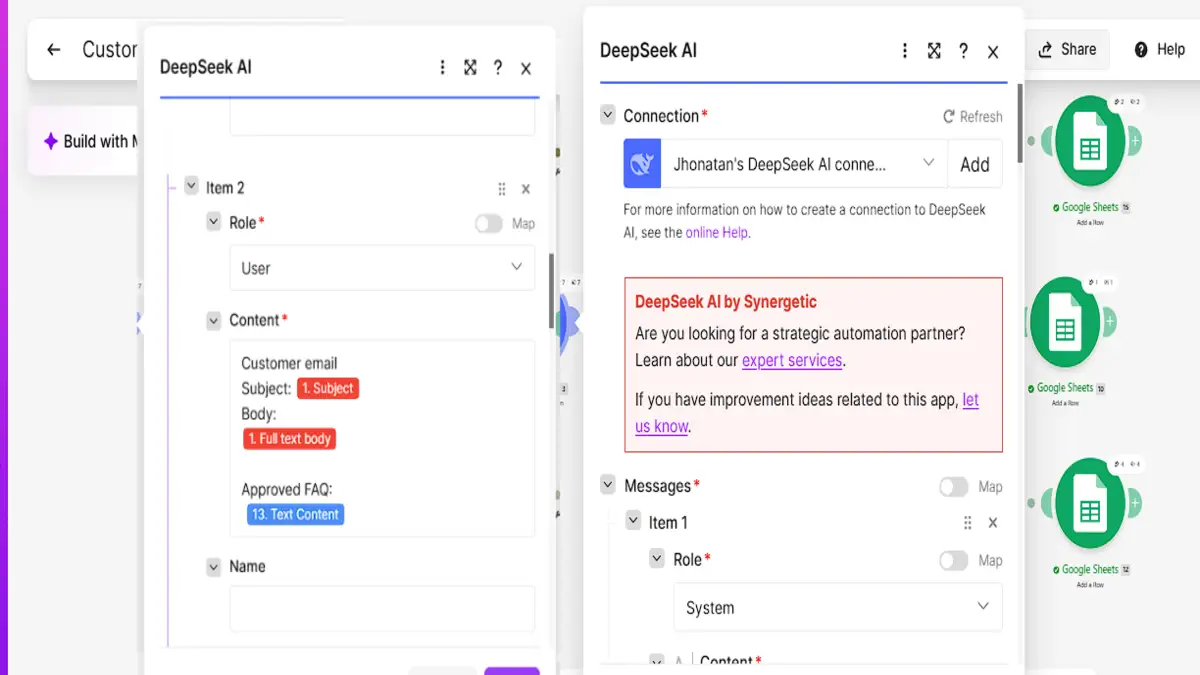
The User message sends only the subject, the body and the FAQ. The customer's email address never goes to the AI. -
Parse the JSON
Add JSON → Parse JSON. Create a data structure with five text fields:
category,faq_id,urgency,summaryanddraft_reply. In JSON string, map the AI answer through a small cleaner that removes code fences if the model adds them:{{trim(replace(replace(3.choices[].message.content; ```json; emptystring); ```; emptystring))}}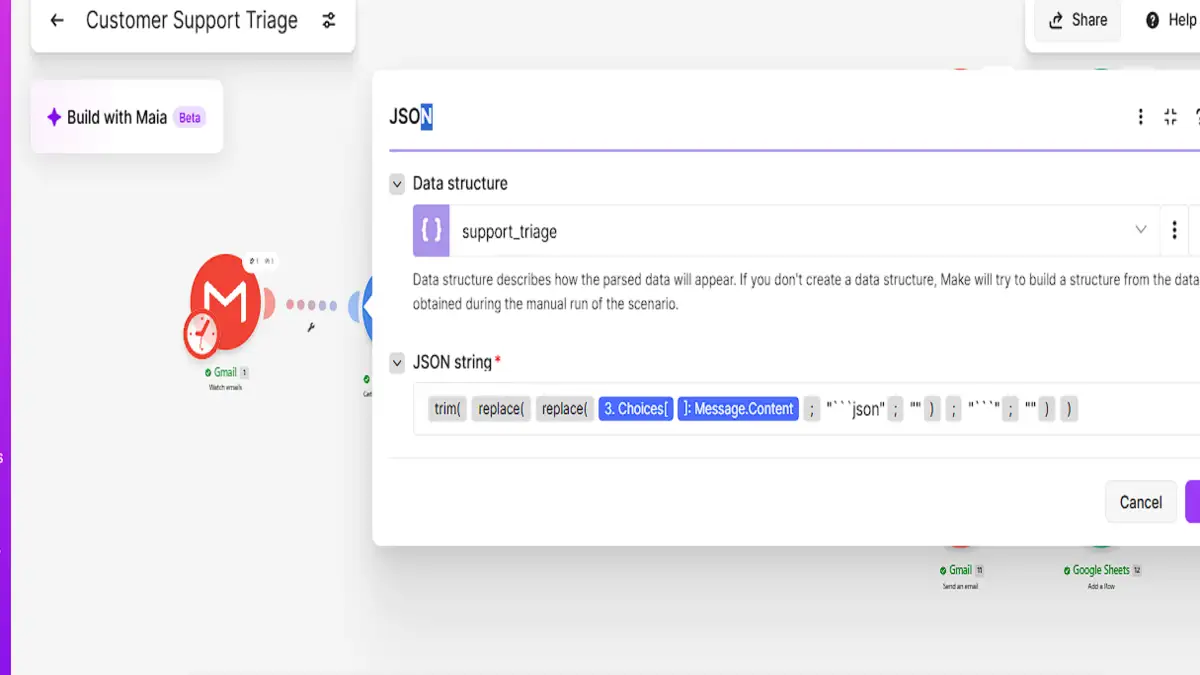
The JSON string must be mapped from the AI answer, never typed by hand. -
Split the work with a router
Add a Router with three routes:
- Draft reply:
categoryequal tofaqANDfaq_idnot equal tononeANDurgencynot equal tohigh. - Spam:
categoryequal tospam(case insensitive). - Needs a human: no condition. Mark it as the fallback route, so it gets everything the other two routes didn't take.
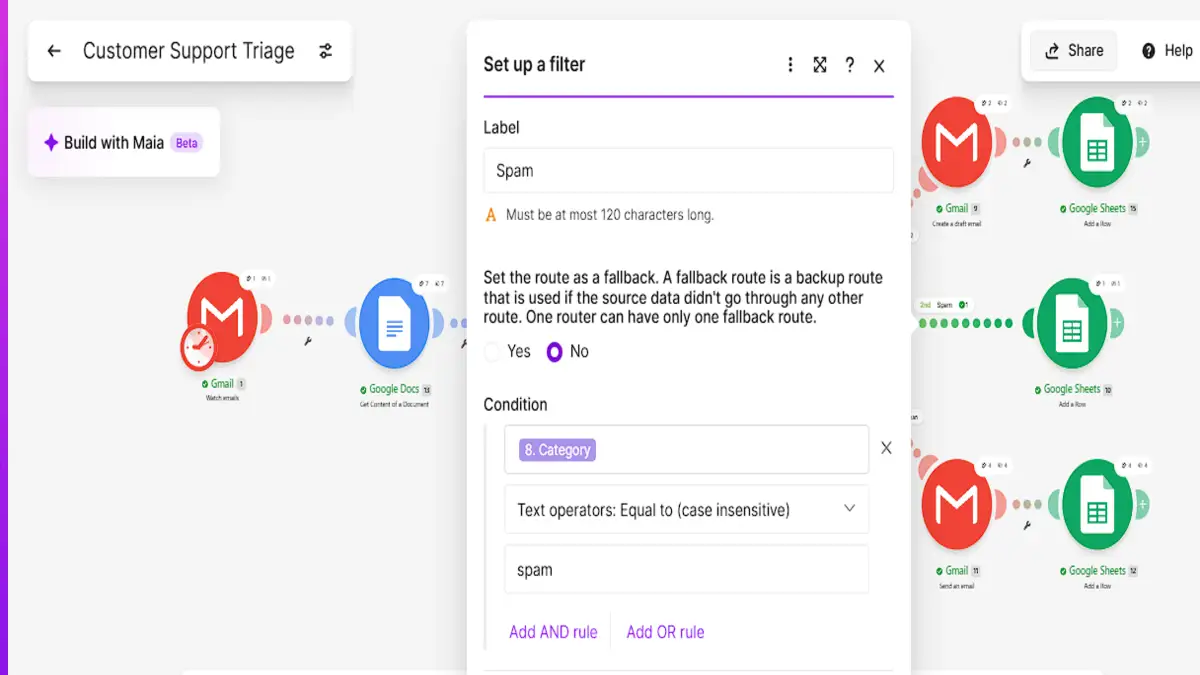
The Spam filter. The fallback route catches everything else. - Draft reply:
-
Create the draft
On the Draft reply route, add Gmail → Create a draft. Map To to the sender's email from module 1, Subject to the original subject (add
Re:in front if you prefer), Body type toRaw HTMLand Content todraft_reply.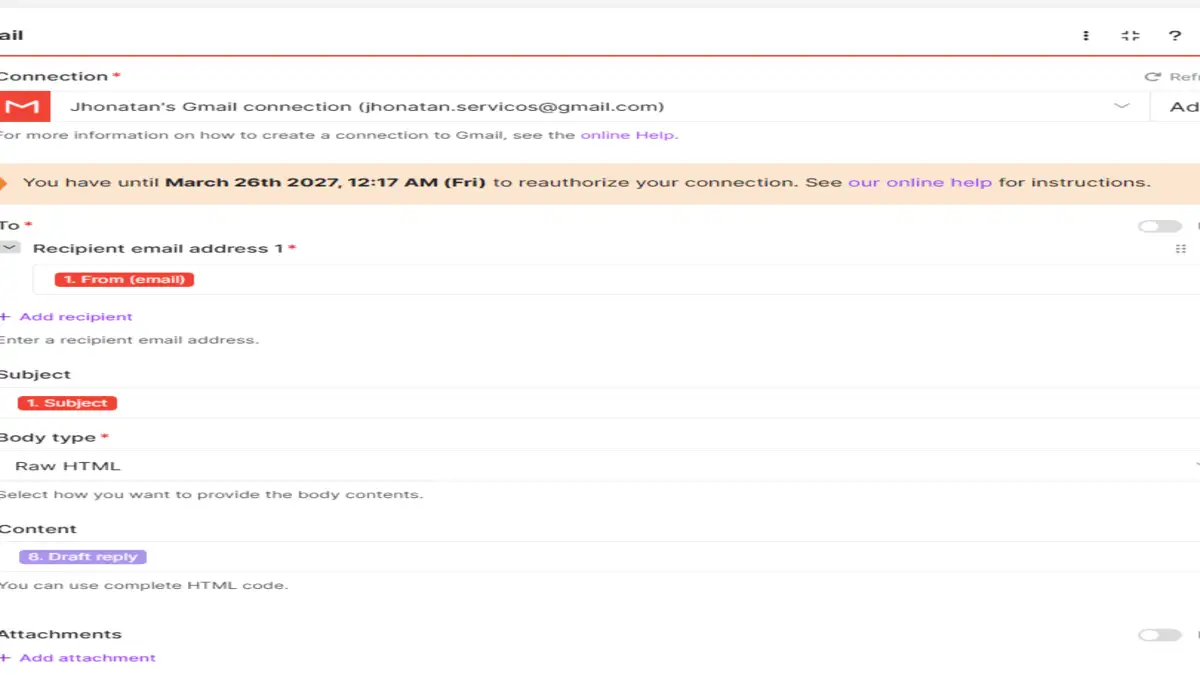
The draft goes back to the sender, but stays in your Drafts folder until you send it. -
Alert a person
On the Needs a human route, add Gmail → Send an email to your own address. In Subject, type
[Needs a human], then map the category and the original subject. In Content (Raw HTML):Category: {{8.category}}<br> Urgency: {{8.urgency}}<br> Summary: {{8.summary}}<br><br> Original message:<br> {{1.fullTextBody}}Use the full text body, not the snippet. The snippet is cut after a couple of lines.
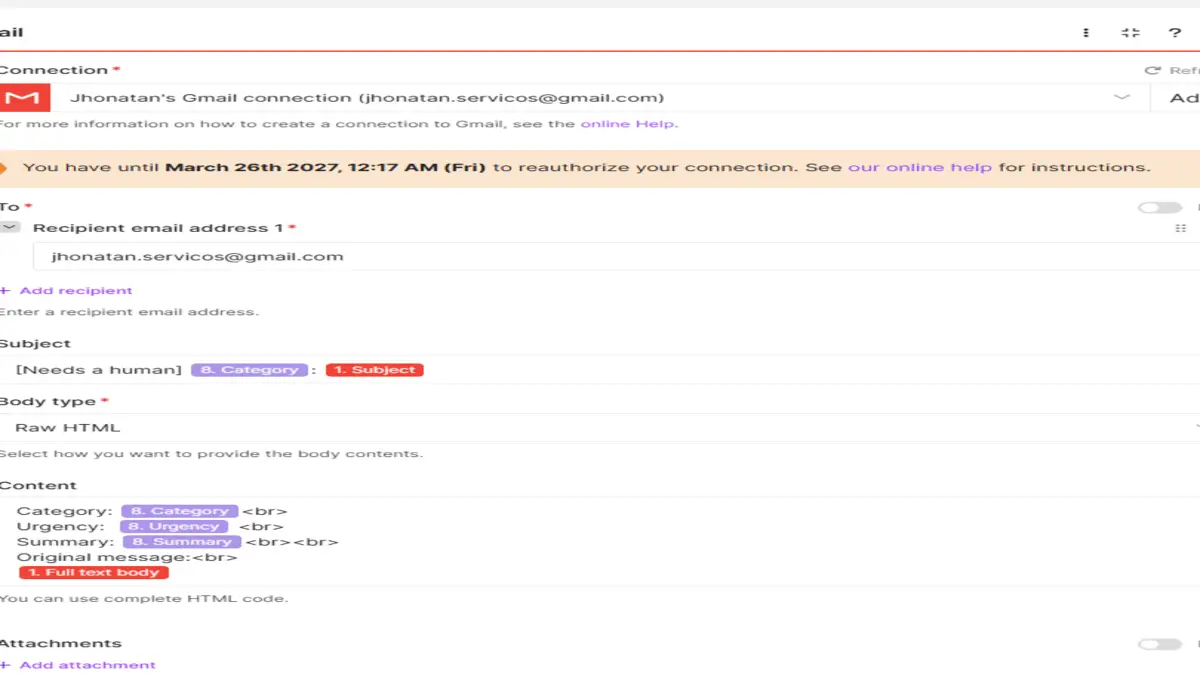
The alert email: you see what the customer wants before you open the thread. -
Log every email
At the end of each of the three routes, add Google Sheets → Add a row for the
Ticketstab. Map the fields below and type the route name by hand:draft,spamorhuman. Build it once, then right-click and Duplicate it for the other routes.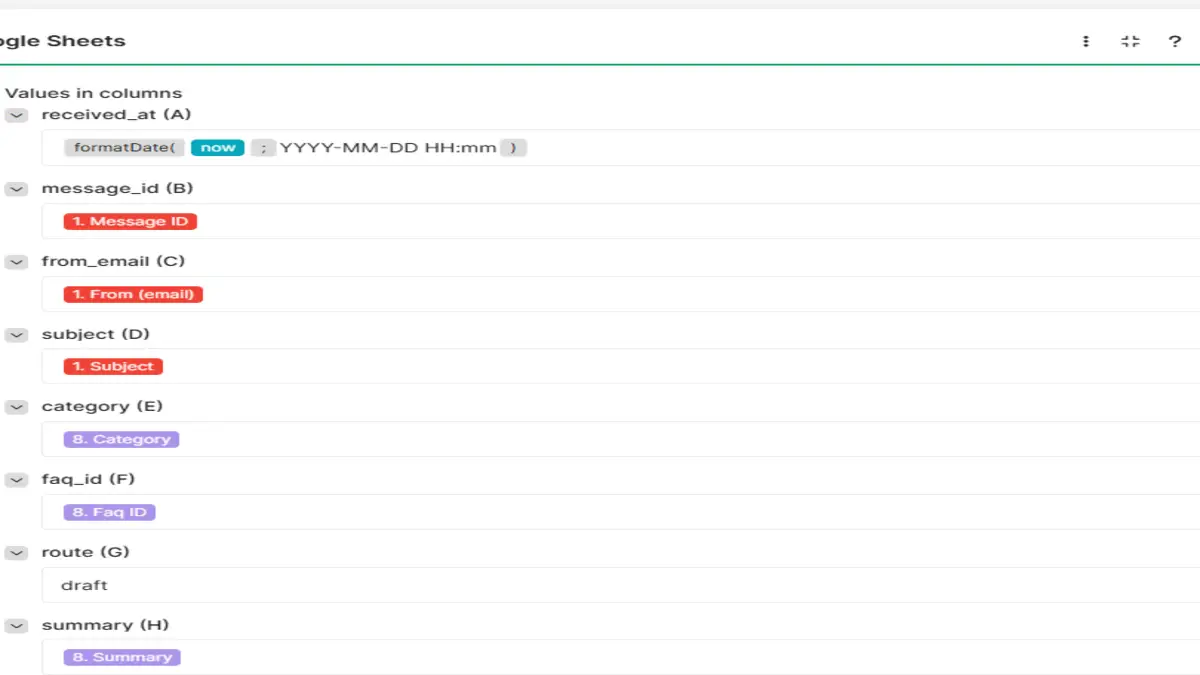
The same log row on every route. Only the route value changes. For
received_at,{{formatDate(now; "YYYY-MM-DD HH:mm")}}records when Make processed the email. To record when the email arrived, use theDatefield from the Gmail module instead.
The prompt that classifies and drafts
This is the System message I used, with the final fixes. Copy it and change the company details:
You are a customer support triage assistant for Brightside Cleaning Co., a home cleaning business in Austin.

Read the customer email and the approved FAQ. Return ONLY a JSON object with these keys:
- "category": one of "faq", "complaint", "billing", "refund", "account", "urgent", "spam", "other"
- "faq_id": the ID of the FAQ entry that fully answers the email, or "none"
- "urgency": "low", "normal" or "high"
- "summary": one sentence, max 25 words, describing what the customer wants
- "draft_reply": a reply to the customer, or "" (empty)

Rules:
1. Write a draft_reply ONLY when category is "faq" and one FAQ entry fully answers the question. Use only the facts in that FAQ answer. Never invent prices, policies, dates or promises.
2. If the question is not fully answered by the FAQ, set faq_id to "none" and draft_reply to "".
3. Complaints, billing questions, refunds, account changes, legal issues and anything urgent never get a draft_reply.
4. In draft_reply: greet the customer by first name if the email shows it, answer in 2 to 4 short sentences, and sign as "Thanks,<br>The Brightside team". Separate the greeting, the answer and the sign-off with HTML line breaks, like this: "Hi Anna,<br><br>Yes, we're open...<br><br>Thanks,<br>The Brightside team". Do not use \n in draft_reply.

Respond with a valid json object only, with no extra text.
And the User message, with the fields mapped from Gmail and Google Docs:
Customer email
Subject: {{1.subject}}
Body:
{{1.fullTextBody}}

Approved FAQ:
{{13.text}}
Rules 1 and 2 do most of the work. They tell the AI that "I don't know" is a valid answer, and that it should hand the email over instead of guessing.
Testing it with seven emails
I sent seven emails to the +support alias, each one testing a different route. Then I ran the scenario once and checked the Tickets sheet.
| Category | FAQ | Route | |
|---|---|---|---|
| Are you open on Saturday? (Anna) | faq | FAQ-01 | draft |
| Price for a 2-bedroom apartment (Mark) | faq | FAQ-02 | draft |
| Oven cleaning? (Julia) | faq | none | human |
| Not happy with yesterday's cleaning | complaint | none | human |
| Refund request (duplicate charge) | refund | none | human |
| URGENT: cleaner didn't show up | urgent | none | human |
| Rank #1 on Google in 7 days | spam | none | spam |
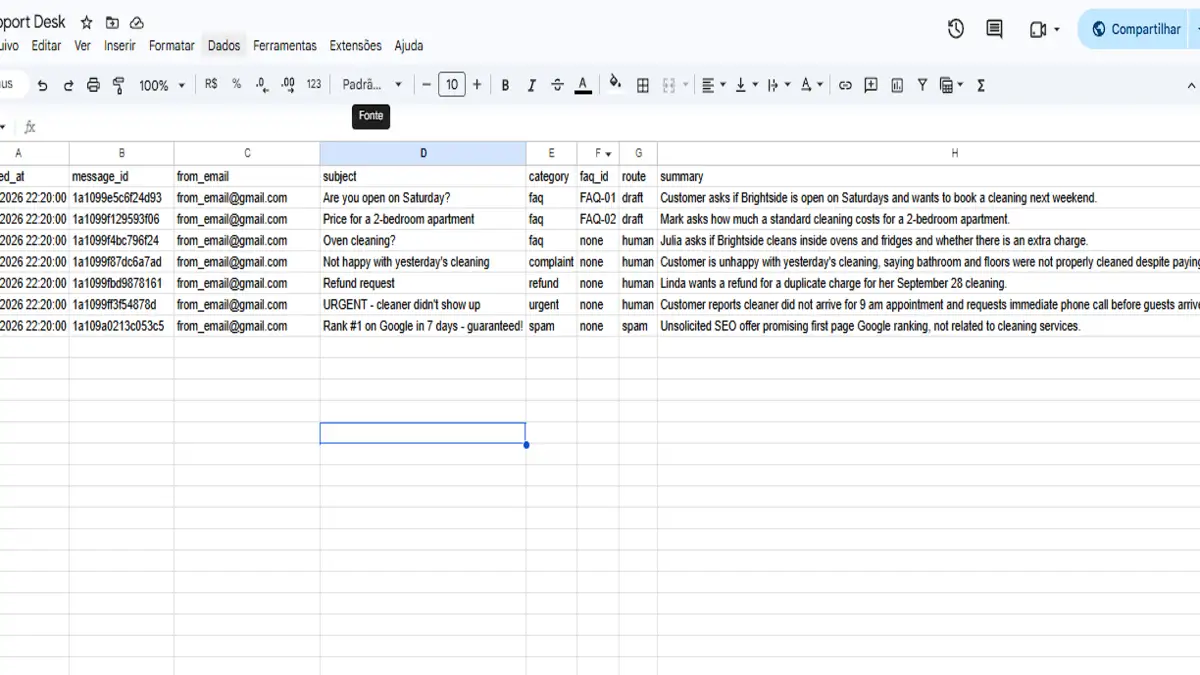
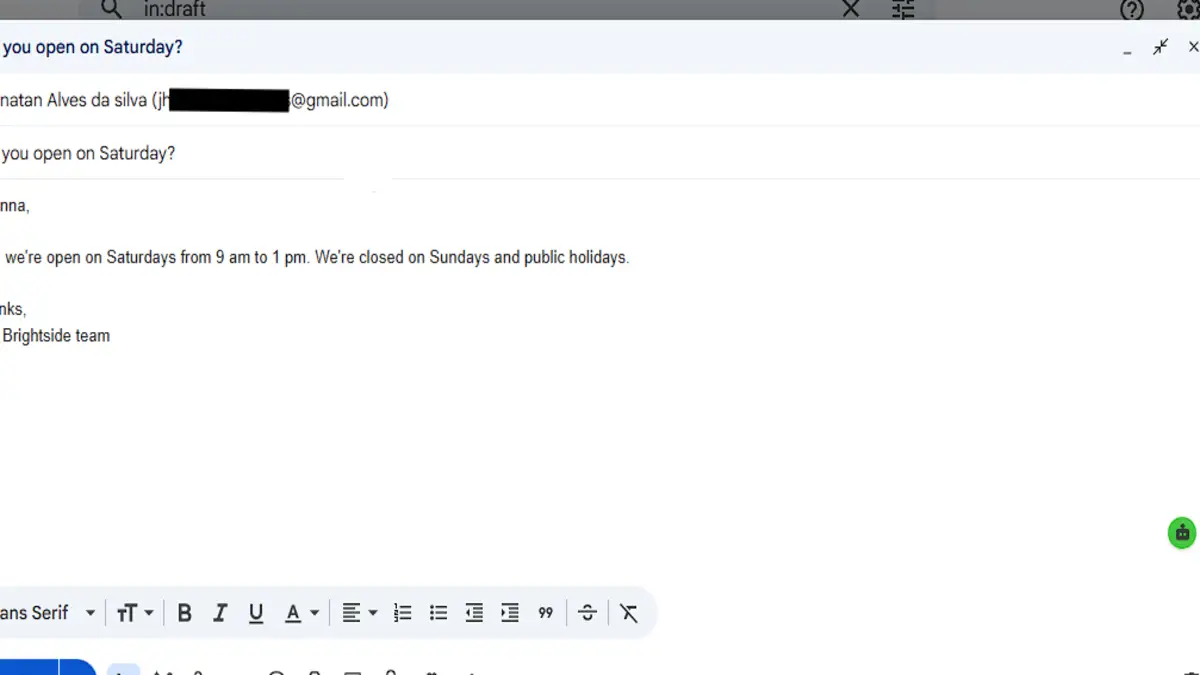
The most important result is Julia's email. Asking whether the team cleans inside the oven sounds like a simple FAQ question, and the AI labeled it faq. But no FAQ entry answers it, so it set faq_id to none, wrote no draft, and the router sent it to a person. That is the behavior you want: no invented answer, no invented price.
![Alert email with subject [Needs a human] urgent, showing category, urgency, summary and the original message](/uploads/tutorials/automate-customer-support-make/12-needs-a-human-email.webp)
What it costs
Make. Make charges one credit per module action. Each email uses about five: Google Docs, DeepSeek, Parse JSON, the Gmail draft or alert, and the Sheets row. Spam uses four, because it has no Gmail module. The router doesn't use credits. The whole seven-email test used about 35 credits.
Watch the trigger, though. Each scheduled check of the Gmail module costs a credit, even when there is no new email. Checking every 15 minutes, all day, is close to 2,900 checks a month. The free plan has 1,000 credits and two active scenarios, so on the free plan schedule it every hour, only during business hours. The Core plan starts at $9 a month, billed yearly, for 10,000 credits a month, with unlimited active scenarios and scheduling down to the minute (Make pricing page, checked October 2026).
DeepSeek. I used deepseek-v4-pro, which costs $1.32 per million input tokens and $3.96 per million output tokens at peak hours, and half that off-peak (DeepSeek pricing page, checked October 2026). Each email sent about 770 input tokens. Because v4-pro reasons before answering, the output can run to a thousand tokens or more. That puts each email well under one cent. My whole test day, with several full runs of the seven emails plus the failed attempts described below, cost $0.03 in DeepSeek usage.
For triage, you don't need a reasoning model. The cheaper deepseek-flash model, in non-thinking mode, costs $0.30 per million input tokens and $1.20 per million output tokens at peak, which brings 1,000 emails to well under a dollar of AI cost.
To see whether that pays off, put your own email volume and hourly rate into the automation ROI calculator.
What not to automate
Even with good drafts, some emails should always reach a person first:
- Refunds, chargebacks and billing disputes
- Complaints, especially the angry ones
- Anything urgent or about safety
- Account changes, cancellations and personal data requests
- Legal threats or anything that mentions a lawyer
The prompt already blocks drafts for these, and the router sends them to the fallback route. Don't remove that safety net to save a few minutes. For more on picking what to automate first, see which processes to automate first.
How to know it's working
The Tickets sheet gives you three numbers to watch each week:
- First response time. FAQ questions should now get an answer as soon as you review the drafts, not when you get to the inbox.
- Share sent to a person. If almost everything goes to "human", your FAQ is missing common questions. Add them.
- Drafts you had to edit. Keep a quick count. If you edit most drafts, fix the FAQ answer or the prompt before you think about sending anything automatically.
When a dedicated help desk is better than Make + Gmail
This setup fits one or two people answering email. Once you need shared inboxes, assignments, a knowledge base or live chat, a help desk makes more sense.
Two common options for small teams: Freshdesk starts at $19 per agent a month, and Help Scout at $25 per user a month, both billed yearly. Help Scout also sells AI answers as an add-on at $0.75 per resolution (official pricing pages, checked October 2026). For a team of two, that is $38 to $50 a month before any AI, compared with a few dollars for the Make setup. Platforms like Gladly or Salesforce make sense for large support teams, not for a business answering a few dozen emails a day.
What I learned building it
I have built AI support automation before, on WhatsApp for accounting offices, and the lesson there was the same as here: the AI part is easy, and the small plumbing details break things. These six problems all showed up in testing, and none of them produced an obvious error message.
- DeepSeek's JSON mode needs the word "json" in the prompt. With
Response formatset to JSON object, the API rejected the request until the prompt contained the word in lowercase. That is why the last line of the prompt says "valid json object". - The Text Aggregator merged all emails into one. My first version read the FAQ from a spreadsheet and joined the rows with a Text Aggregator. The aggregator also collapsed the seven emails into a single bundle, and the email bodies came through blank. Replacing it with one Google Docs module fixed it.
- Every email got the same answer. When you create the Parse JSON data structure from an example, it is easy to leave that example text in the JSON string field. The scenario runs without errors, but every email is classified as the example: in my case, seven "opening hours" questions. Map the AI answer instead.
- A reasoning model can spend all its tokens thinking. With Max tokens at 800,
deepseek-v4-proused all of them on reasoning and returned an empty answer withfinish_reason: length. Raising the limit to 8,000 solves it. You can also switch off Thinking in the DeepSeek module, since sorting emails doesn't need it. - A router route with no modules is ignored. While the Spam route had only a filter, Make sent the spam email to the fallback route. Once I added the Sheets module to that route, the filter worked.
- Raw HTML ignores line breaks. The first drafts came out as one long line, because the prompt asked for plain text and Gmail's Raw HTML body ignores normal line breaks. Asking the AI to separate the parts with
<br>fixed the layout.
Common errors
| What you see | Likely cause | Fix |
|---|---|---|
| Gmail module finds no new emails | It already processed them in an earlier run | Right-click the module, Choose where to start, pick a time before your test emails |
| Parse JSON fails | Empty or cut answer from the AI | Check finish_reason in the AI output; raise Max tokens |
| Rows in the sheet with empty columns | Mappings point to a module you deleted | Open the Sheets module and map every field again |
| Alert email bounces | Typo in the To address | Check the Gmail module; one wrong letter is enough |
| Alert subject shows "chat.completion" | The wrong field (Object, from the AI module) is mapped | Map the Subject field from the Gmail trigger |
Download the blueprint
You can import the whole scenario into your Make account instead of building it by hand: download the blueprint (.json). In Make, create a new scenario, open the three-dot menu and choose Import blueprint. Then reconnect Gmail, Google Docs, Google Sheets and DeepSeek, pick your Support label, your FAQ document and your sheet, and replace you@example.com with your own address in the alert module. The Parse JSON module needs a new data structure in your account, with the five fields from step 4.
Already capturing leads with Make? The same triage idea works on contact forms; see how to automate lead capture with Make.
FAQ
Can the AI reply to customers automatically?
It can, but I don't recommend starting that way. Begin with drafts, track how many you have to edit, and only consider automatic replies for FAQ answers that have been right for weeks.
Does this work with Outlook instead of Gmail?
Yes. Make has Microsoft 365 Email modules for watching emails, creating drafts and sending messages. The router, the prompt and the log stay the same.
Can I use ChatGPT or Claude instead of DeepSeek?
Yes. Swap step 3 for the OpenAI or Anthropic module, keep the same prompt and update the mapping in the Parse JSON module to point to the new module's answer.
Does the customer's personal data go to the AI?
Only the subject and the body of the email. The sender's address stays in Make and goes straight to the draft and the log. If customers often include sensitive data in emails, check your AI provider's data policy before using this.
How many emails can the free Make plan handle?
With about five credits per email and an hourly check during business hours, the free plan covers roughly 150 emails a month. Above that, the Core plan is the next step.