When the same person fills in your form twice, a basic Make scenario saves them twice. It also sends them the same welcome email twice, as if you had never talked. The fix is simple: check the email before you save anything, and give returning leads their own path.
This guide walks through a scenario I built and tested with a Google Form and a Google Sheet. New leads get a row and a welcome email. Returning leads update their existing row, raise a submission counter, and you get an email telling you they're back.
What you'll build
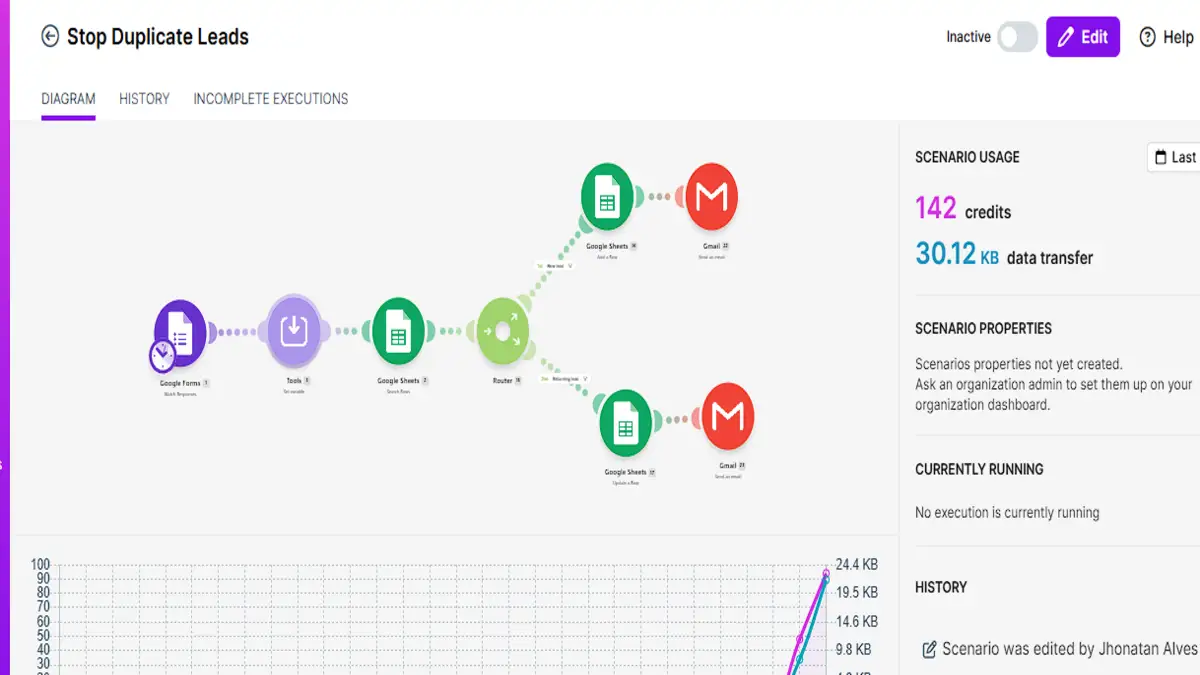
The scenario has seven modules:
- Google Forms > Watch Responses picks up new form submissions.
- Tools > Set variable cleans the email address.
- Google Sheets > Search Rows looks for that email in your lead list.
- Router splits the flow in two.
- New lead path: Google Sheets > Add a Row, then Gmail > Send an Email to the lead.
- Returning lead path: Google Sheets > Update a Row, then Gmail > Send an Email to you.
The email is the key. One email, one row, no matter how many times that person writes to you.
Before you start
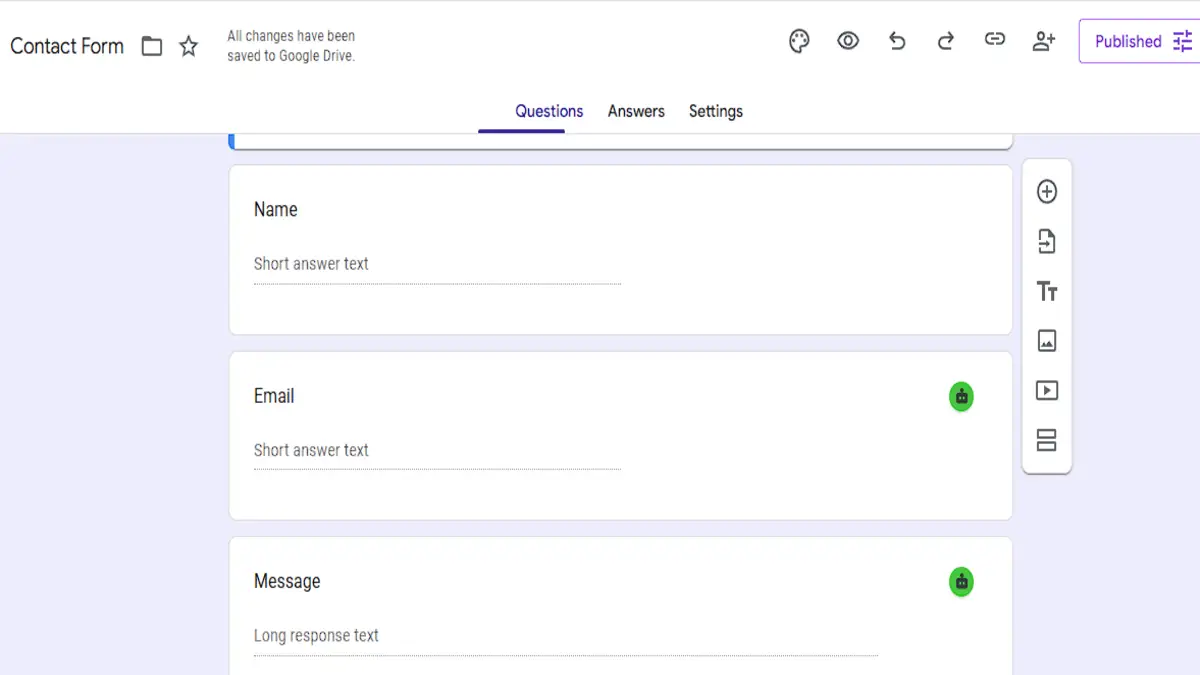
You need a Google Form with three questions: Name, Email and Message.
You also need a Google Sheet (mine is called Lead Tracker) with these headers in row 1:
email, name, message, first_contact, last_contact, submissions
Format the first_contact and last_contact columns as plain text (Format > Number > Plain text). Otherwise Google Sheets may turn the dates into its own format.
Step by step
Step 1: Watch new form responses
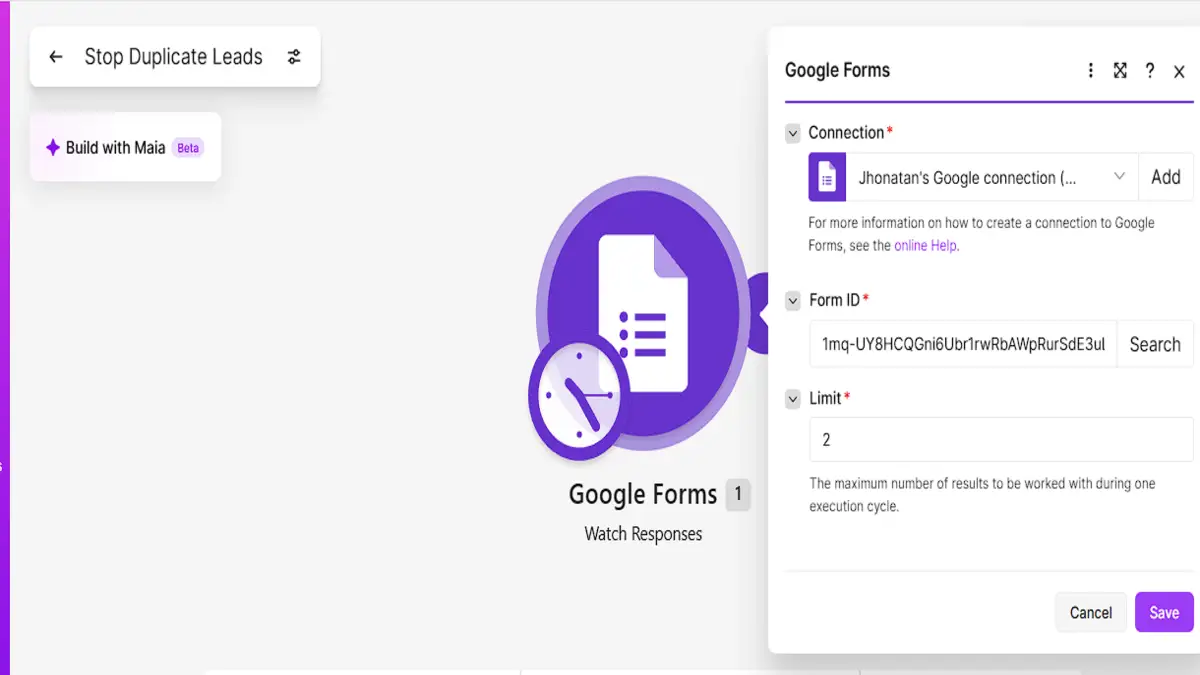
Create a new scenario and add Google Forms > Watch Responses. Connect your Google account and pick your form. The Limit field sets how many responses Make handles per run. A small number like 2 is fine for testing.
Where are the answers? The Google Forms module doesn't deliver answers as simple "Name" or "Email" fields. Each answer sits under the question's ID, so the path looks like {{1.answers.`QUESTION_ID`.textAnswers.answers[1].value}}. Run the module once with a test response, then pick the fields from the mapping panel. Make fills in the IDs for you.
Step 2: Clean the email
Add Tools > Set variable. Name the variable clean_email and set its value to:
{{lower(trim(1.answers.`EMAIL_QUESTION_ID`.textAnswers.answers[1].value))}}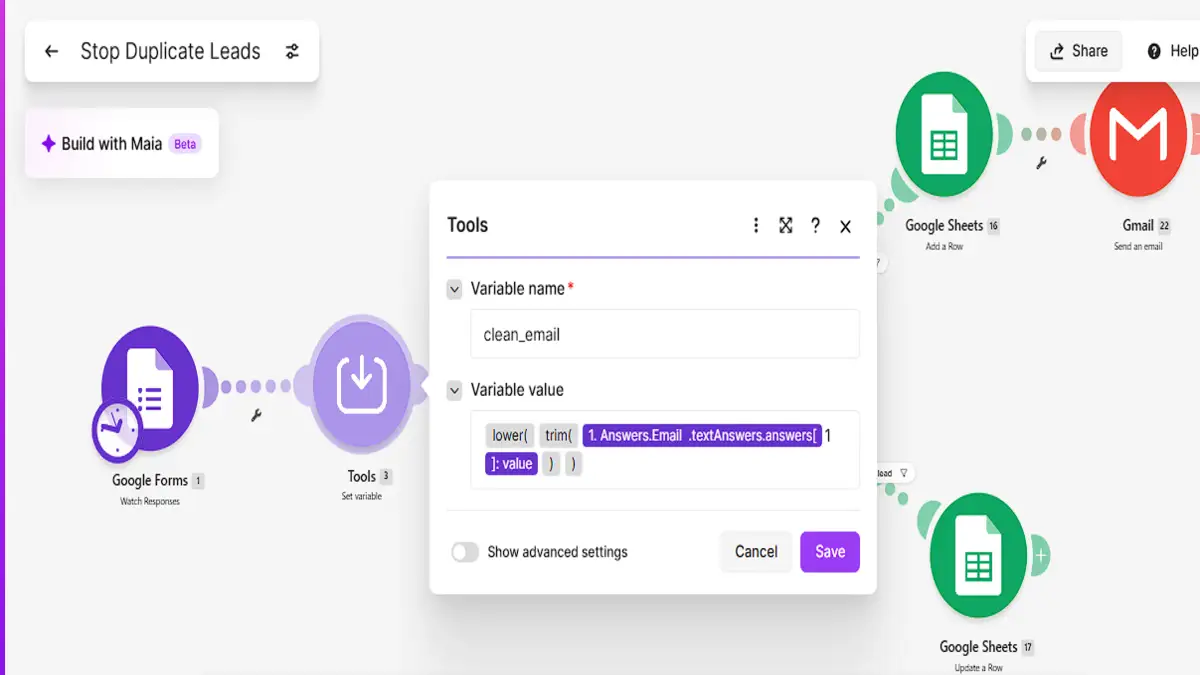
This step matters more than it looks. trim() removes spaces at the start and end, and lower() turns everything into lowercase. Without it, "Maria@Gmail.com" and "maria@gmail.com " look like two different people, and the duplicate check fails.
Step 3: Search for the email in your sheet
Add Google Sheets > Search Rows. Select your spreadsheet and sheet, and set Table contains headers to Yes.
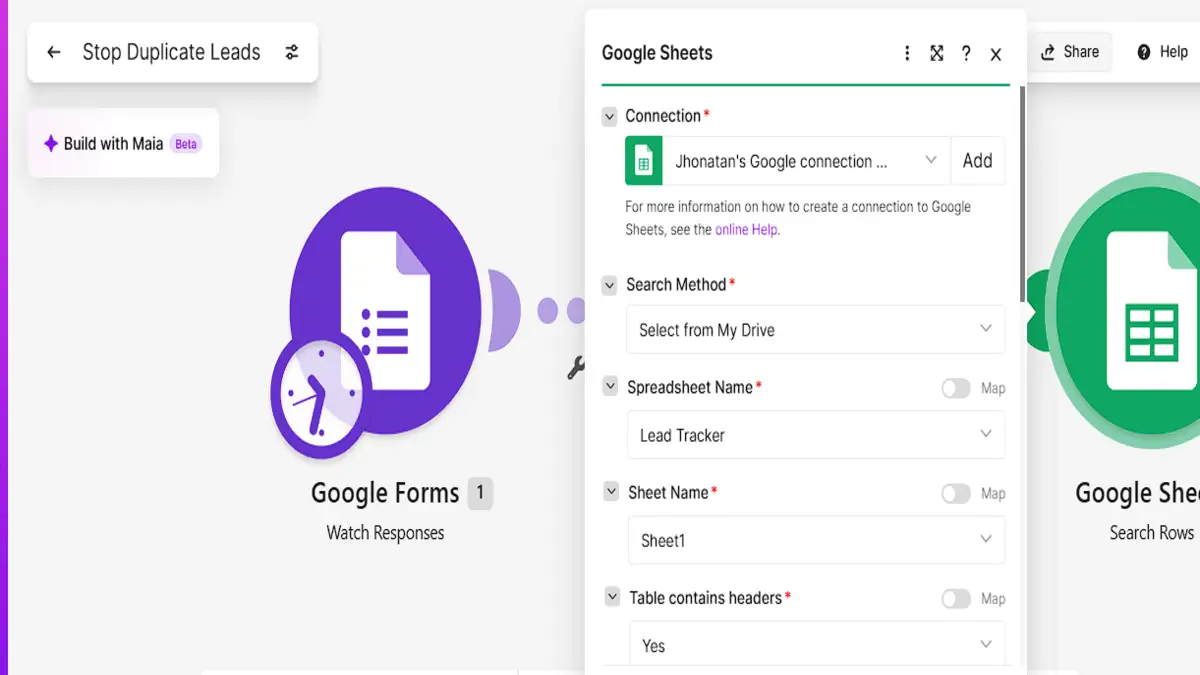
In the Filter section, choose the email (A) column, the operator Text operators: Equal to, and map clean_email as the value. Set Limit to 1, since you only need to know if the email exists.
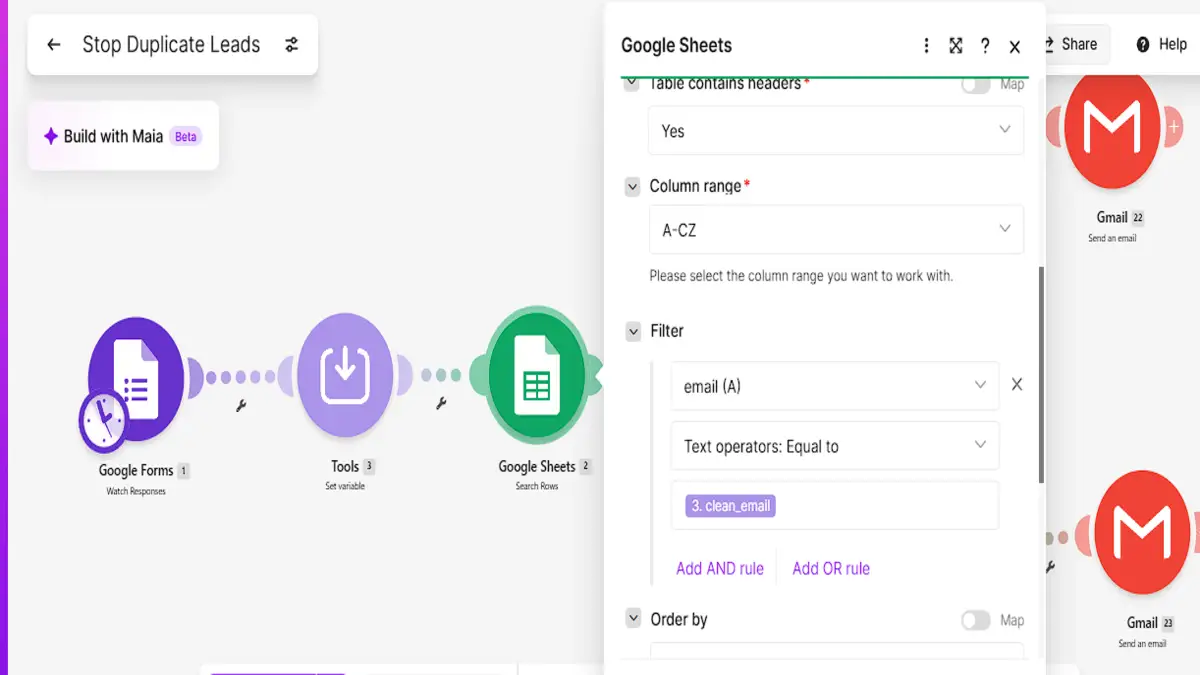
Because every row is saved with clean_email, the sheet only holds clean emails. That's what makes the comparison reliable.
Step 4: Split new and returning leads
Add a Router after Search Rows. Click the line of the first route and set up a filter:
- Label: New lead
- Condition:
Total number of bundles(from Search Rows), equal to0
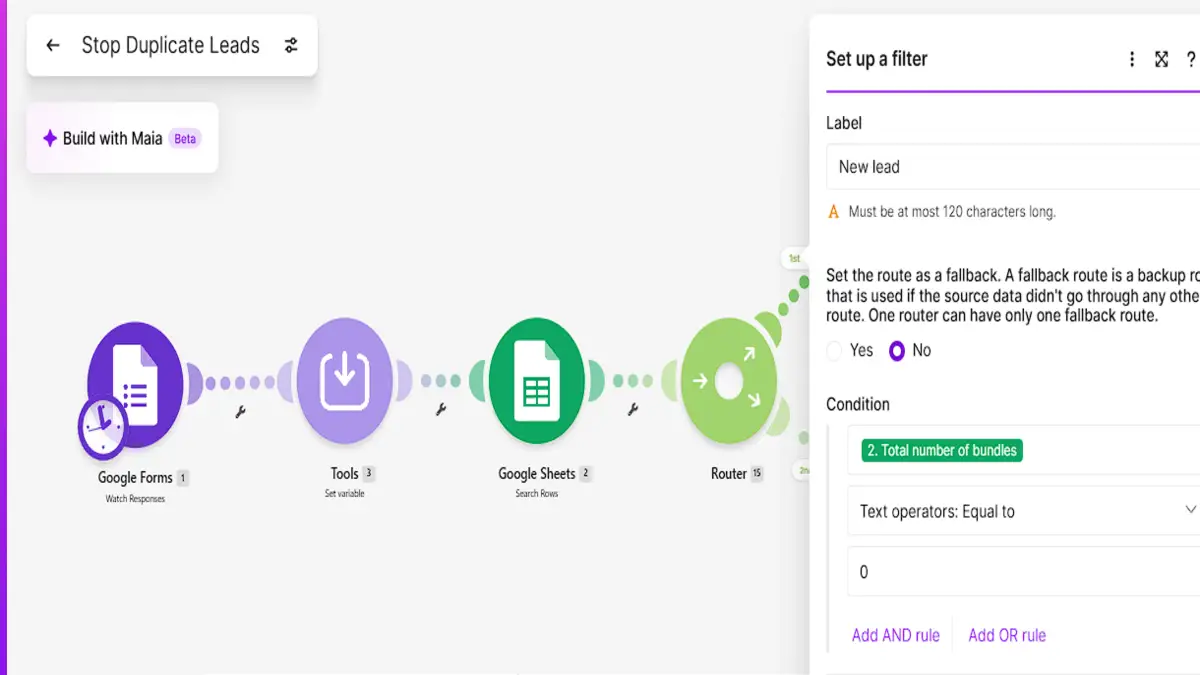
Search Rows outputs a Total number of bundles field with the number of rows it found. In my tests, the scenario kept going to the router even when the search found nothing, so this filter caught every new lead.
Step 5: Save the new lead and welcome them
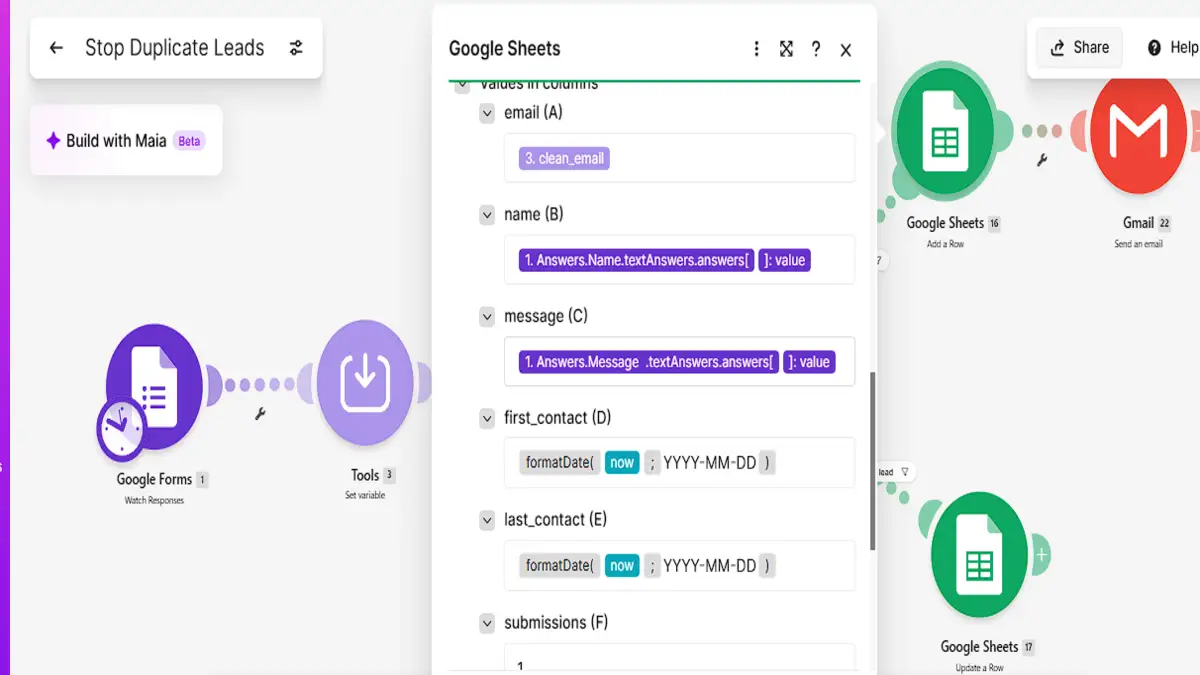
On the New lead route, add Google Sheets > Add a Row and fill in the columns:
- email:
clean_email - name and message: the answers from the form
- first_contact and last_contact:
{{formatDate(now; "YYYY-MM-DD")}} - submissions:
1
Then add Gmail > Send an Email. Send it to clean_email, set Body type to Raw HTML, and use something like this:
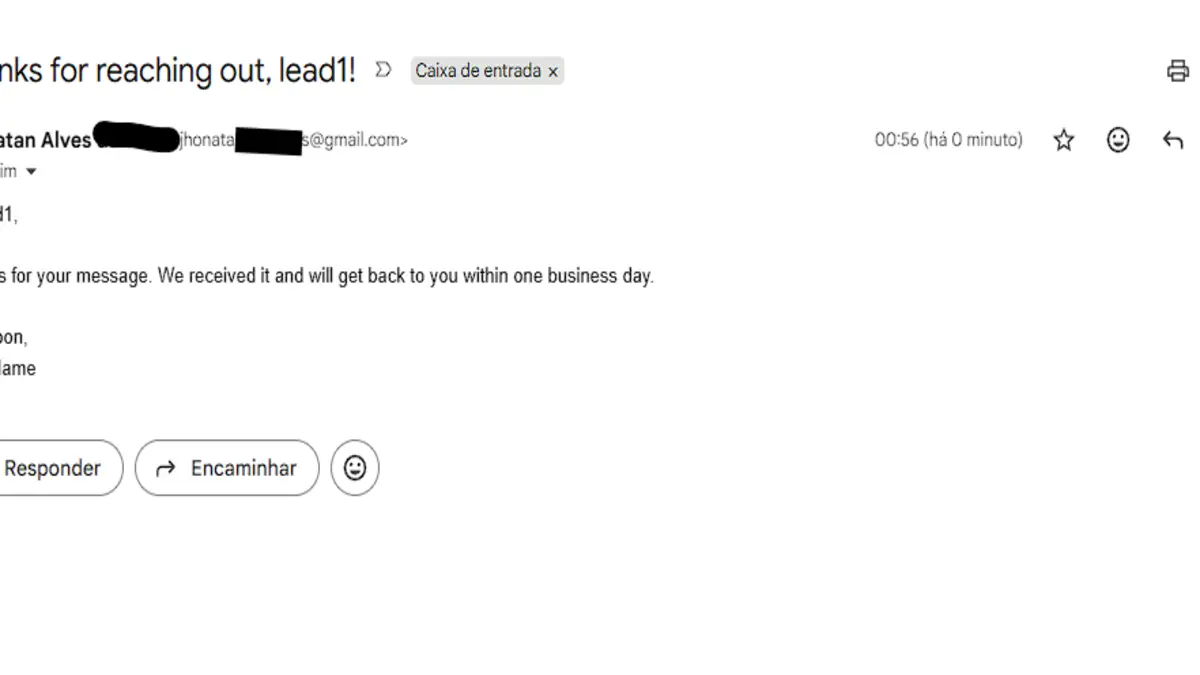
Subject: Thanks for reaching out, {{name}}!
Hi {{name}},<br><br>
Thanks for your message. We received it and will get back to you within one business day.<br><br>
Talk soon,<br>
Your Name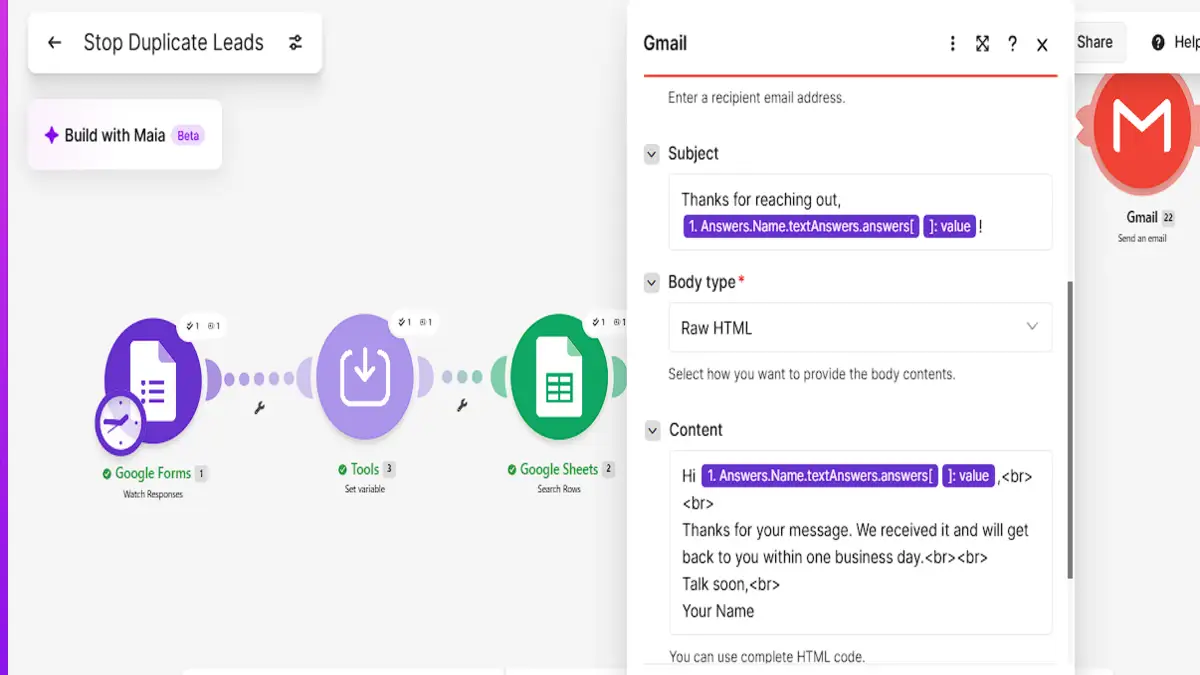
Step 6: Update the returning lead
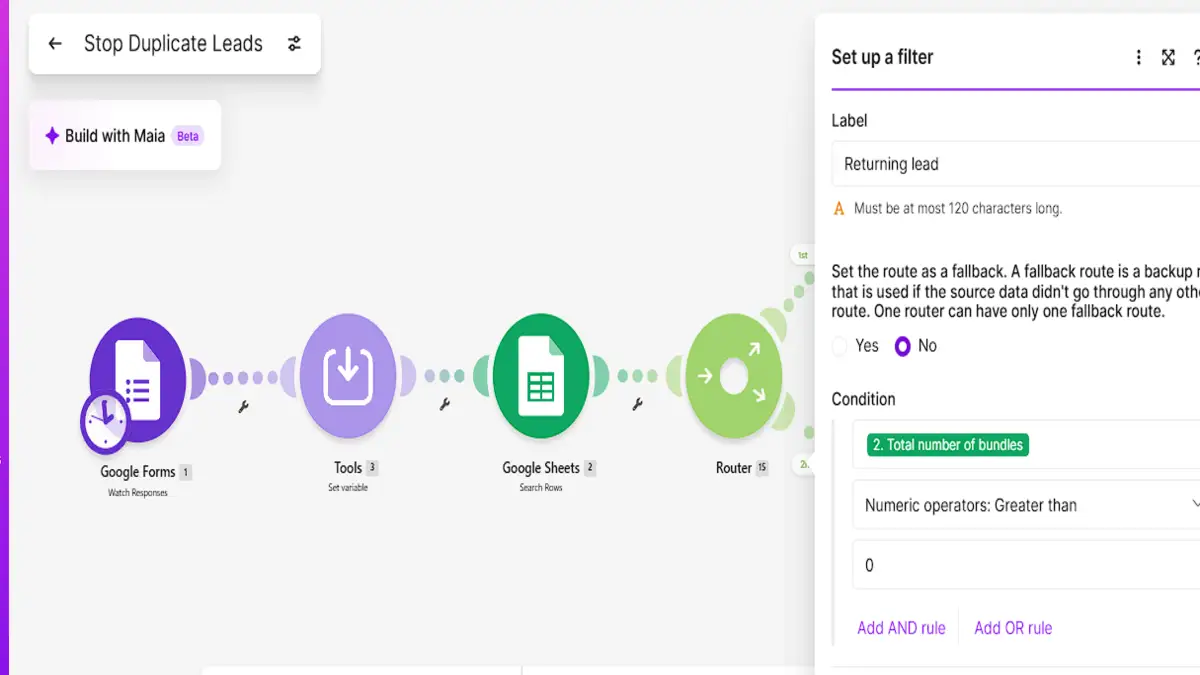
Back at the router, set up the filter on the second route:
- Label: Returning lead
- Condition:
Total number of bundles, Numeric operators: Greater than0
Add Google Sheets > Update a Row on this route, with the same spreadsheet and sheet. Map Row number from Search Rows, then fill in only these columns:
| Column | Value |
|---|---|
| name | leave empty |
| message | the new message from the form |
| last_contact | {{formatDate(now; "YYYY-MM-DD")}} |
| submissions | {{parseNumber(2.`5`) + 1}} |
Leave email, name and first_contact empty. Update a Row doesn't touch empty fields, so the original name and the first contact date stay as they were.
Why parseNumber? Google Sheets sends cell values to Make as text, so adding 1 to the submissions column doesn't work as a plain sum. parseNumber() turns the text into a number first. The 2.`5` part is the submissions value from Search Rows (module 2). Make numbers the columns from zero, so A is 0 and F is 5.
Step 7: Get notified when a lead comes back
Add Gmail > Send an Email after Update a Row. This one goes to you, not to the lead. A returning lead often means a follow-up question or renewed interest, and it's worth a personal reply.
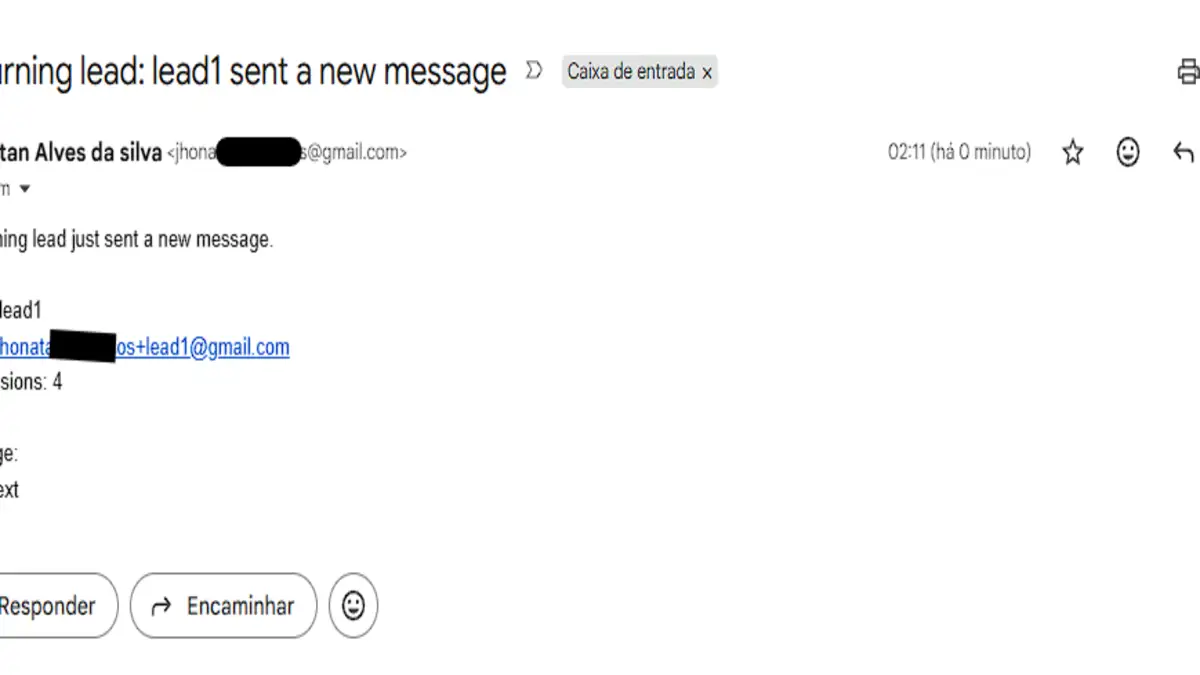
Subject: Returning lead: {{name}} sent a new message
A returning lead just sent a new message.<br><br>
Name: {{name}}<br>
Email: {{clean_email}}<br>
Submissions: {{parseNumber(2.`5`) + 1}}<br><br>
Message:<br>
{{message}}
Testing it
I ran three submissions with the same person, clicking Run once after each one.
Test 1: a new email. The scenario took the New lead path, added a row with one submission and sent the welcome email.
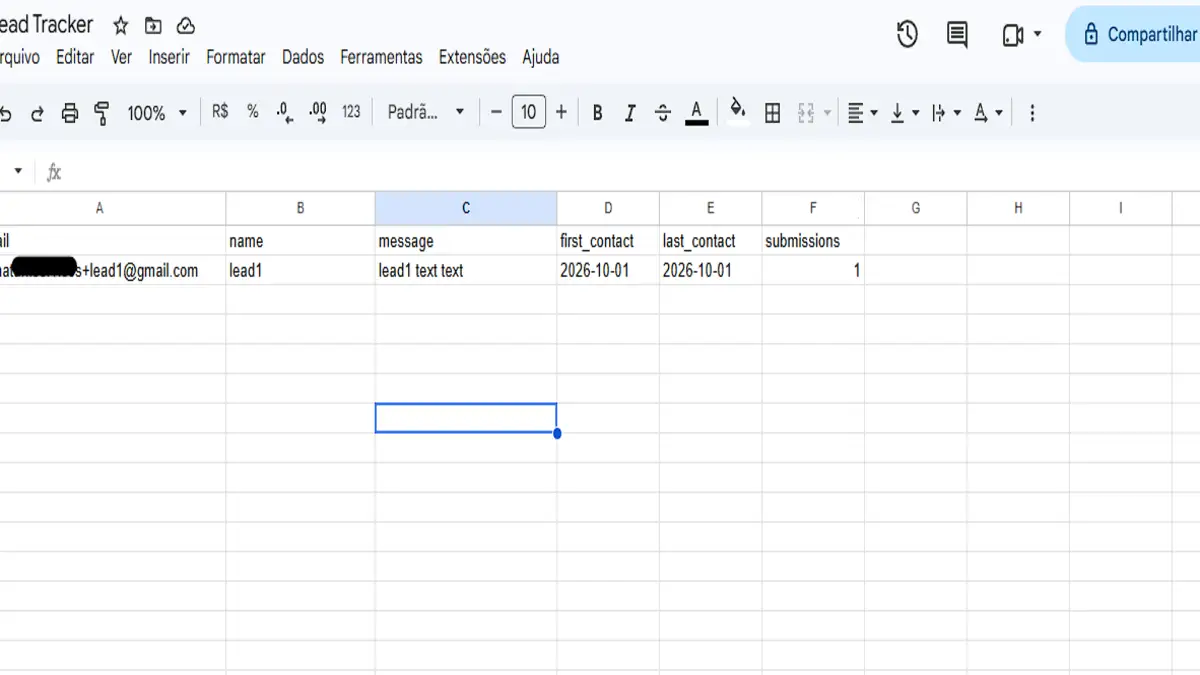
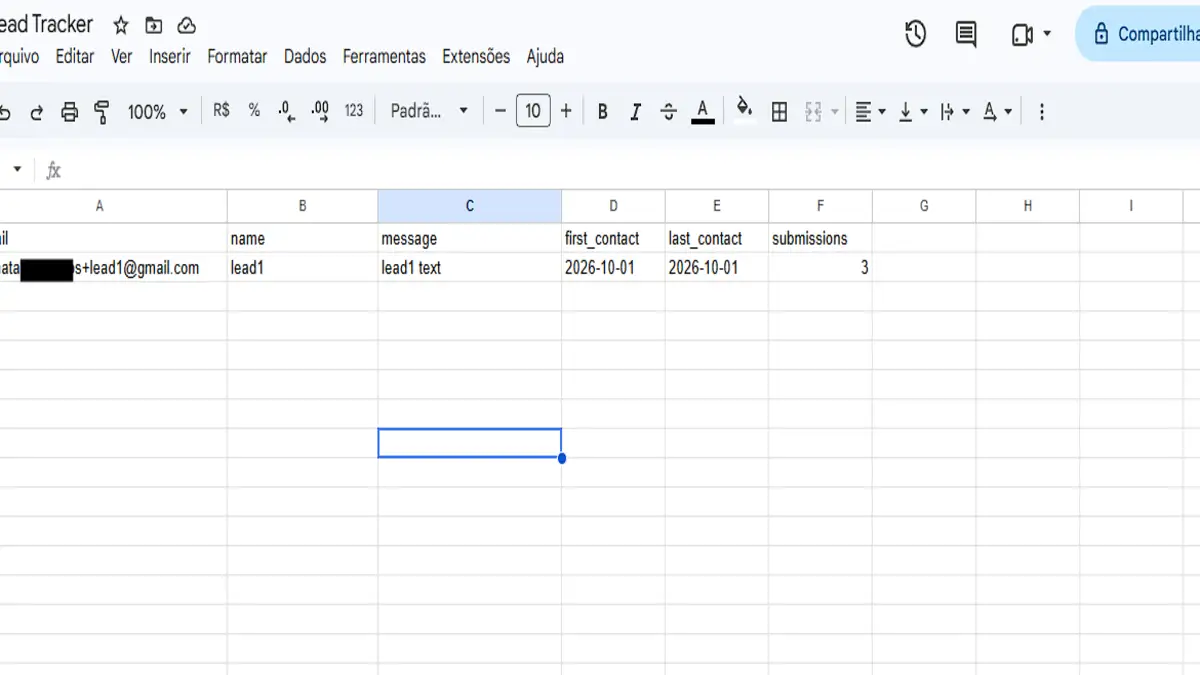
Test 2: the same email again. This time it took the Returning lead path. No new row, and the counter went to 2.
Test 3: the same email with capital letters. Thanks to clean_email, Make still found the existing row. The counter went to 3, and the sheet still had a single row for that person.
After adding the notification email, I sent one more submission to check it. This is what arrived in my inbox:
What I learned building it
The form answers weren't where I expected. I assumed the Google Forms module would give me simple Name and Email fields. It doesn't. The answers are grouped by question ID, and my first mappings came out empty until I used the full path. Running the trigger once with a real response and mapping from that output saved a lot of guessing.
The counter refused to count. My first try to add 1 to the submissions column failed, because the value comes from the sheet as text. Wrapping it in parseNumber() fixed it right away.
My first returning path was silent. It updated the row and stopped there. The data was correct, but nobody knew the lead had come back. Adding the notification email turned a quiet counter into something useful for sales.
Empty fields protect your data. If you fill every column in Update a Row, you overwrite the original name and first contact date. Leave them empty and only send what changed.
Credits and scheduling
Each module that runs uses Make credits. In my test runs, one form response used between 4 and 6 credits, depending on the path. When you're done testing, click the clock on the first module, choose how often Make should check the form, and switch the scenario on. Checking every 15 minutes is fast enough for most contact forms. If you're on the free plan, a longer interval like once an hour keeps your monthly credits under control.
Using a webhook instead of the form trigger? Webhooks start the scenario the moment data arrives. If the same person submits twice within seconds, two runs could search the sheet at the same time and both find nothing. Turn on Sequential processing in the scenario settings so Make handles one submission at a time.
Common errors
| Problem | Cause | Fix |
|---|---|---|
| Name or email comes out empty | Google Forms answers are nested under question IDs | Run the trigger once and map the answer from its output: answers.`ID`.textAnswers.answers[1].value |
| Same person saved twice | Email has different capital letters or extra spaces | Search and save with clean_email, never with the raw answer |
| Old rows aren't found | Rows saved before you added clean_email still have the raw email | Fix the old emails in the sheet to lowercase, with no spaces |
| Submissions counter doesn't increase | The sheet sends the value as text | Use parseNumber() before adding 1 |
| Name is replaced on return | Update a Row has the name field mapped | Leave name, email and first_contact empty in Update a Row |
| Wrong row updated | Row number isn't mapped from Search Rows | Map Row number from the Search Rows module |
Where this fits
This duplicate check works with any workflow that saves records from a form. If you're building a full lead pipeline, start with the lead capture tutorial and add this check before the save step. The same idea keeps clients from being onboarded twice in the client onboarding scenario, and from receiving the same reminder twice in the invoice reminders guide.
Want to build it yourself? You can create a free Make account here. It's an affiliate link, and it doesn't change your price.
FAQ
Can I use something other than email to detect duplicates?
Yes. Any value that is unique per person works, like a phone number or a customer ID. Clean it the same way before searching. For phone numbers, remove spaces, dashes and parentheses.
Does this work with other form tools?
Yes. Replace the Google Forms trigger with the trigger for your tool, such as Typeform, Tally or a webhook. The rest of the scenario stays the same: clean the email, search, then route.
What happens if Search Rows finds no match?
Search Rows reports zero in its Total number of bundles field. The router's New lead filter checks for that zero and sends the lead to the Add a Row path.
Can I keep every message instead of only the latest one?
Yes. In Update a Row, map the message column to the old message plus the new one, separated by a line or a date. For a long history, a second sheet with one row per message is easier to read.
Sources
- Make Help Center: Google Sheets
- Make Academy: Search modules
- Scenario built and tested by the author in October 2026.